Every minute you spend wrestling with design software is a minute you're not shipping content. That's the problem Canva set out to kill — and judging by the numbers, it worked: as of early 2026 Canva has more than 230 million monthly active users and powers billions of designs a year, making it the most-used design tool on the planet by a wide margin.
Here's why that matters to you. Canva took the work that used to need Photoshop, a designer, and a week of back-and-forth, and turned it into a drag-and-drop job you can finish over coffee. Social posts, pitch decks, YouTube thumbnails, logos, printed flyers, short videos — one browser tab, no design degree required. And in 2026 it's not just templates anymore: the Magic Studio AI suite writes copy, generates images, and reformats a design into ten sizes with one click.
Imagine your brand looking consistent everywhere without hiring anyone — your colours, fonts and logo locked into every design your team makes, your social calendar filled a month ahead, your decks looking like a studio built them. That's the day-to-day reality Canva sells, and for most small teams and creators it delivers.
So the real question for this Canva review isn't "is it good?" — it clearly is. It's "is it still the best design tool in 2026, now that AI has shaken up the whole category, and is it worth paying for?" I've used Canva daily for years across client work and my own channels. Here's the honest breakdown — features, pricing, alternatives, and exactly who should (and shouldn't) use it.
What Is Canva?
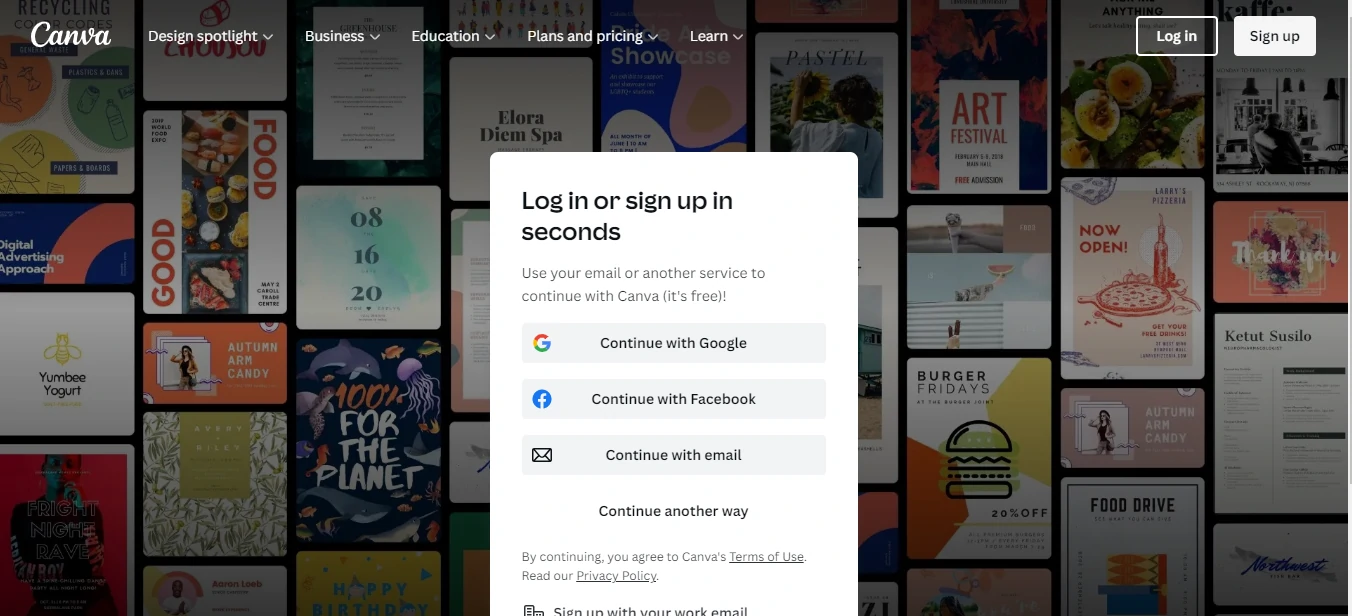
Canva is an online graphic design platform that lets anyone create professional visuals using a drag-and-drop editor, ready-made templates, and a vast asset library — no design software or training required. It runs in the browser and as native apps on iOS, Android, Windows and Mac, with your work syncing across all of them.
It was founded in 2013 in Sydney, Australia, by Melanie Perkins, Cliff Obrecht and Cameron Adams, with the mission to "empower the world to design." Perkins had been teaching design software to students and saw how steep the learning curve was — Canva was the fix. More than a decade later it's one of the most valuable private software companies in the world, reportedly valued around $26 billion in a 2024 secondary share sale, with annual revenue past $3 billion.
The product has expanded far beyond social graphics. Today it covers presentations, documents, whiteboards, websites, video and even print fulfilment — and a string of acquisitions (the Affinity creative suite and the Leonardo.ai image-generation team in 2024, among others) has pushed it deeper into professional and AI-powered design.
Canva at a glance
| Developer | Canva (Sydney, Australia) |
| Launched | 2013 |
| Type | Online graphic design platform |
| Monthly active users | 230M+ (early 2026) |
| Platforms | Web, iOS, Android, Windows, Mac |
| Templates | 610,000+ |
| Free plan | Yes — genuinely usable |
| Starting paid price | Pro from $120/year (or $15/month) |
| Best for | Social media, marketing, presentations, teams |
| My rating | 4.6 / 5 |
Who is Canva for?
Canva is built for the 99% of people who need good design but aren't professional designers. After years of using it, here's who gets the most out of it:
- Small business owners and solopreneurs creating their own marketing
- Social media managers and content creators producing daily posts and thumbnails
- Marketing teams that need on-brand assets fast, without a designer in the loop
- Teachers, students and nonprofits (who get Canva's paid features free)
- Anyone making a presentation, resume, invitation or flyer who doesn't want to fight software
It's a weaker fit if you're a professional doing pixel-perfect photo retouching, intricate vector illustration, or app/UI design — those still belong in Photoshop, Illustrator or Figma. More on that in the alternatives section.
Key features of Canva
The reason Canva wins on breadth is that it folds a dozen tools into one. These are the features that actually matter day to day.
Drag-and-drop editor and templates
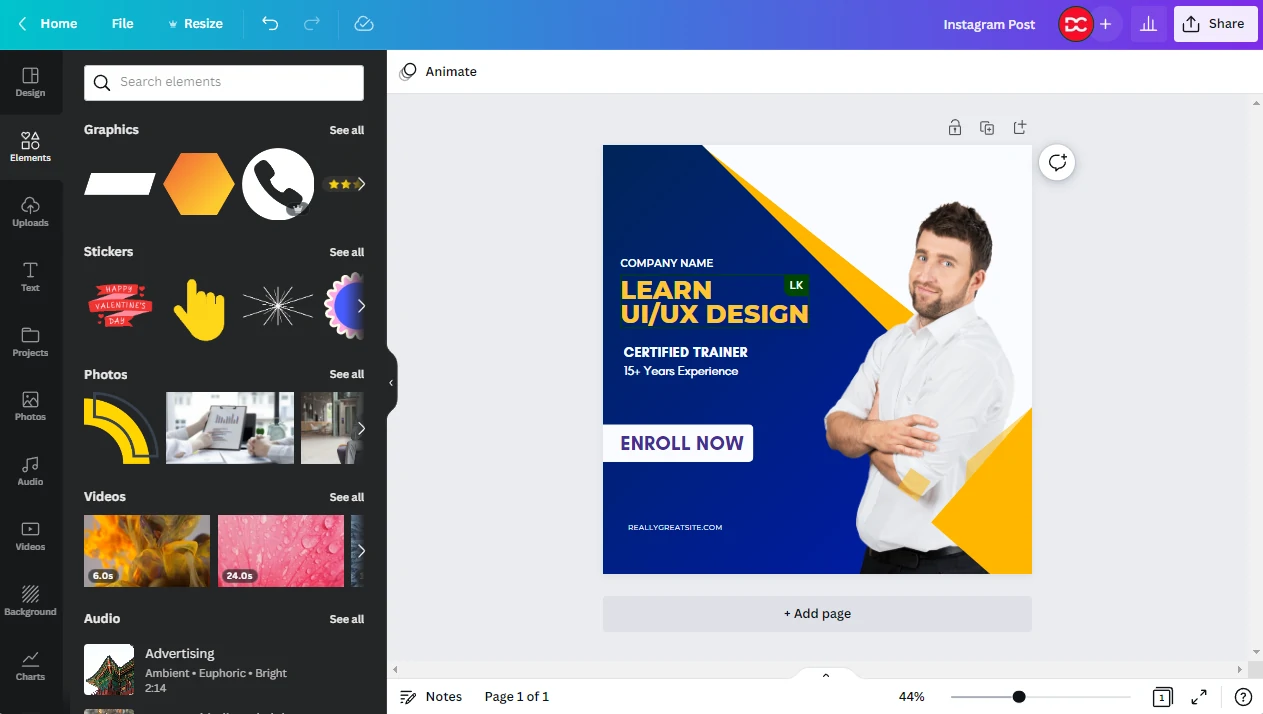
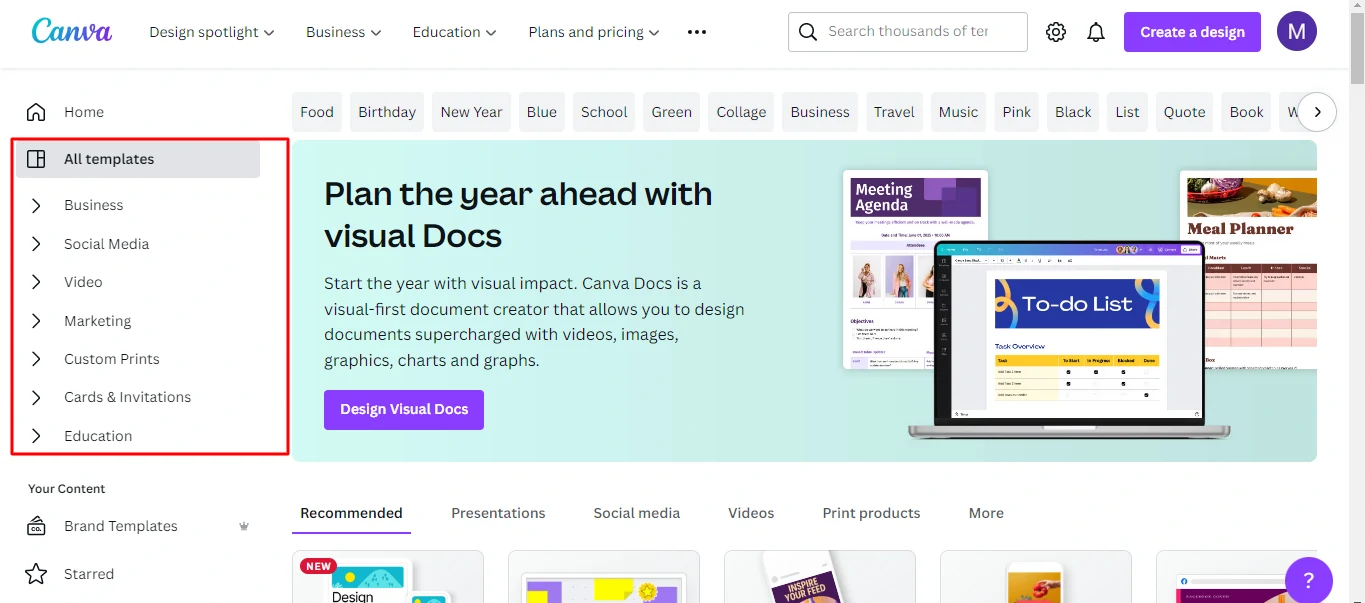
The editor is Canva's superpower. Everything — text, photos, shapes, icons, charts — is something you drag onto the canvas, drop where you want, and resize with a handle. There's no layers panel to fear, no tool palette to memorise. You can be productive in literally minutes, which is why teams adopt it without training.
Behind it sits a library of more than 610,000 templates and over 100 million photos, graphics, videos and audio tracks. You almost never start from a blank page: search "Instagram post," "webinar slide" or "restaurant menu," pick a template, swap the text and colours, and you're done.
Magic Studio: Canva's AI suite
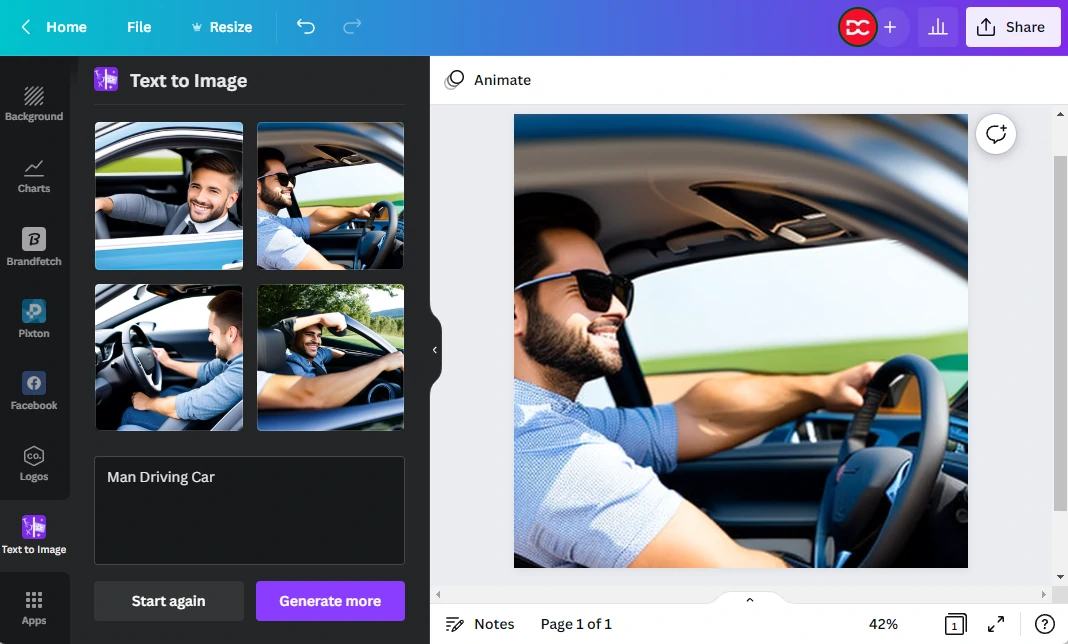
Magic Studio is Canva's bundle of generative-AI tools, and it's the biggest reason the 2026 version feels different from the Canva of a few years ago. The headline tools:
- Magic Write — an AI writing assistant for captions, headlines and copy
- Text to Image — generate original artwork from a text prompt (powered partly by the Leonardo.ai team Canva acquired)
- Magic Edit and Magic Eraser — add, swap or remove objects in a photo by brushing over them
- Magic Design — feed it a prompt or an image and it builds a whole template set
The point isn't novelty — it's that the AI lives inside the same editor you're already in, so you don't bounce between apps. For drafting a first version fast, it's a real time-saver.
Background remover and photo editing
The one-click Background Remover is the feature I reach for most. Drop in a photo, click once, and the background is gone cleanly enough for product shots and headshots — a job that used to mean fiddling in Photoshop. It's a Pro feature, and for many people it justifies the subscription on its own. Canva also covers the everyday photo edits: filters, brightness and contrast, auto-enhance, and effects like shadows and duotone.

Magic Resize and Brand Kit
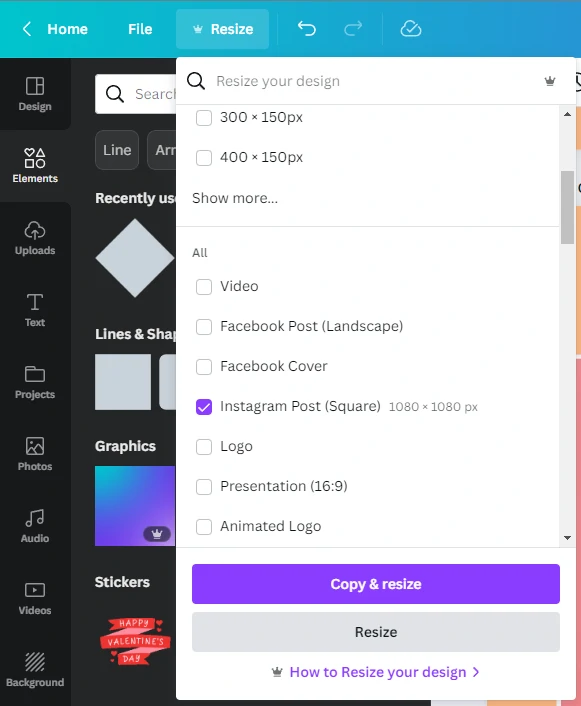
Magic Resize is a quiet killer feature for anyone running multiple channels. Design once, then click to instantly reformat it into every size you need — Instagram post, story, Facebook cover, YouTube thumbnail, A4 print — without rebuilding each one. It alone can turn an afternoon of resizing into a two-minute job.
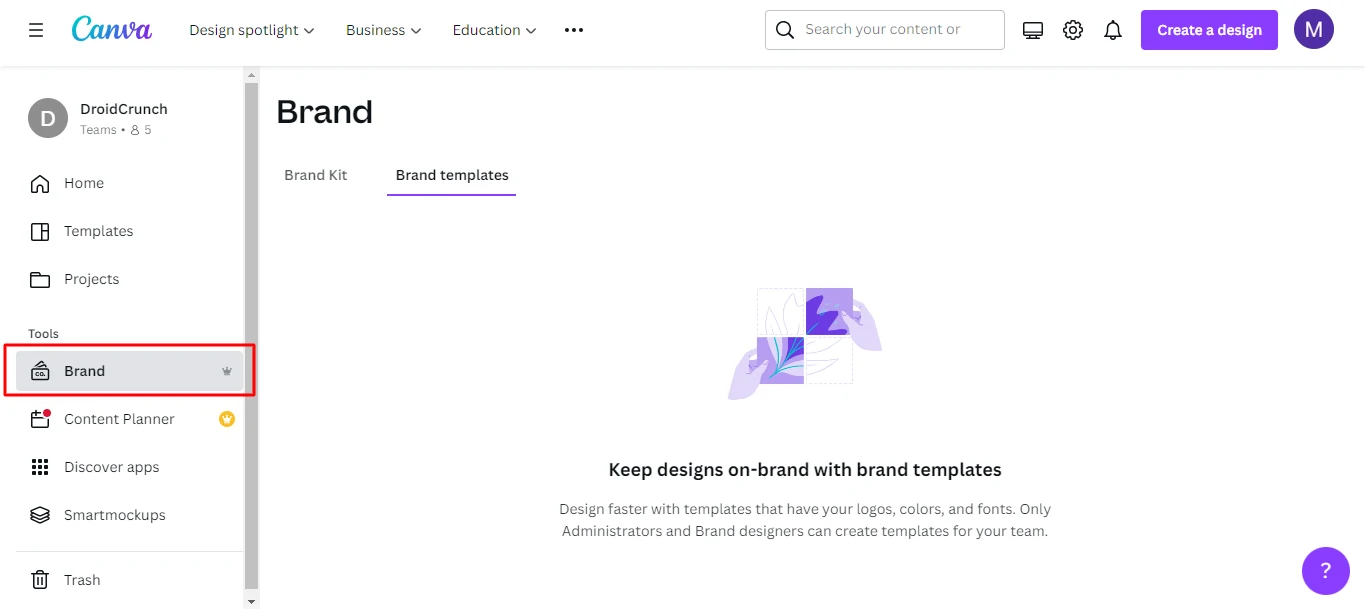
Brand Kit keeps everything on-brand. You store your logos, brand colours and fonts once, and they're one click away in every design. For teams, it means a junior can't accidentally use the wrong blue — the brand is baked in.
Presentations, docs and whiteboards
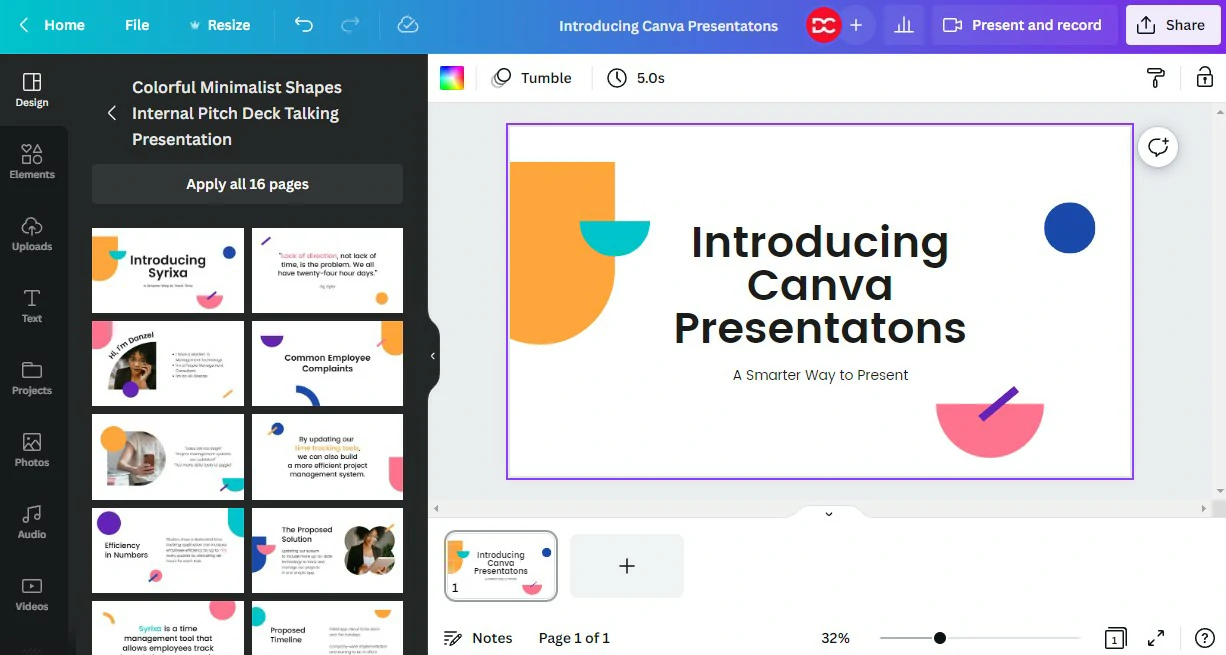
Canva is no longer just a graphics tool. Canva Presentations is a genuine, more design-led alternative to PowerPoint and Google Slides, with animated transitions and a presenter view. Canva Docs adds visual, drag-and-drop documents, and Whiteboards give you an infinite canvas for brainstorming and workshops. For a lot of small teams, this trio quietly replaces a chunk of the Microsoft or Google suite.
Video and audio editing
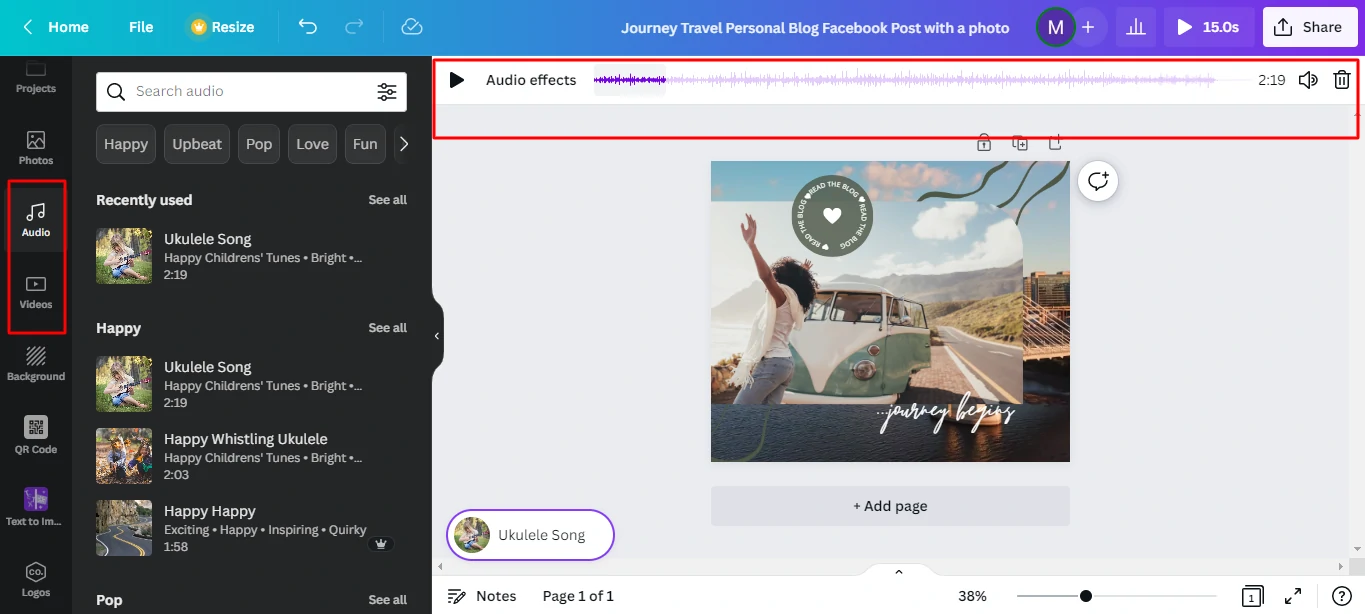
Canva's built-in video editor handles social clips, simple promos and slideshows on a familiar timeline, with stock footage, music and transitions included. It's not Premiere Pro — there's no advanced colour grading or multi-track precision — but for the short-form video most creators and businesses need, it removes the need for separate software entirely.
Team collaboration
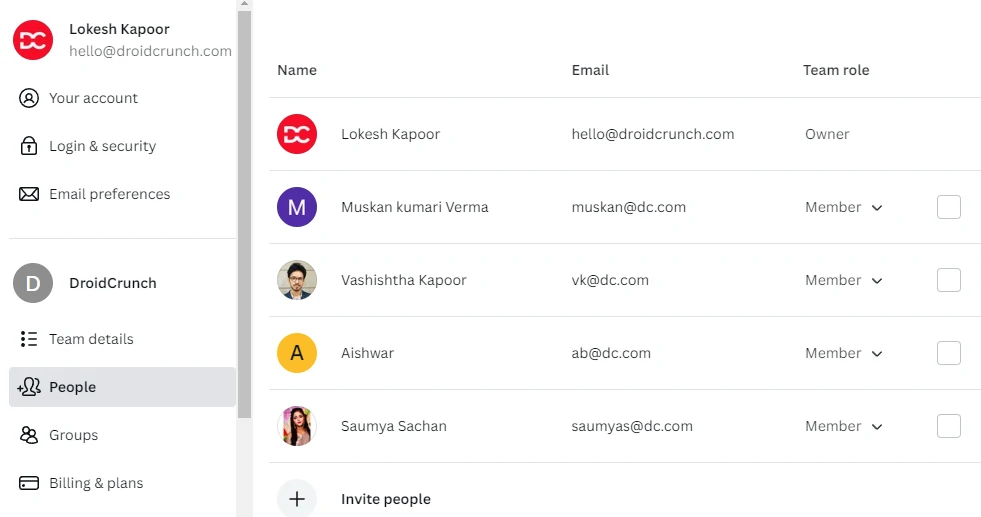
This is where Canva pulls ahead for businesses. Multiple people can work in the same design in real time, leave comments, share folders, and assign roles — much like Google Docs, but for visuals. Combined with Brand Kits and template locking, it makes Canva a real content engine for a marketing team rather than just a tool for one person.
Mobile apps and cross-platform
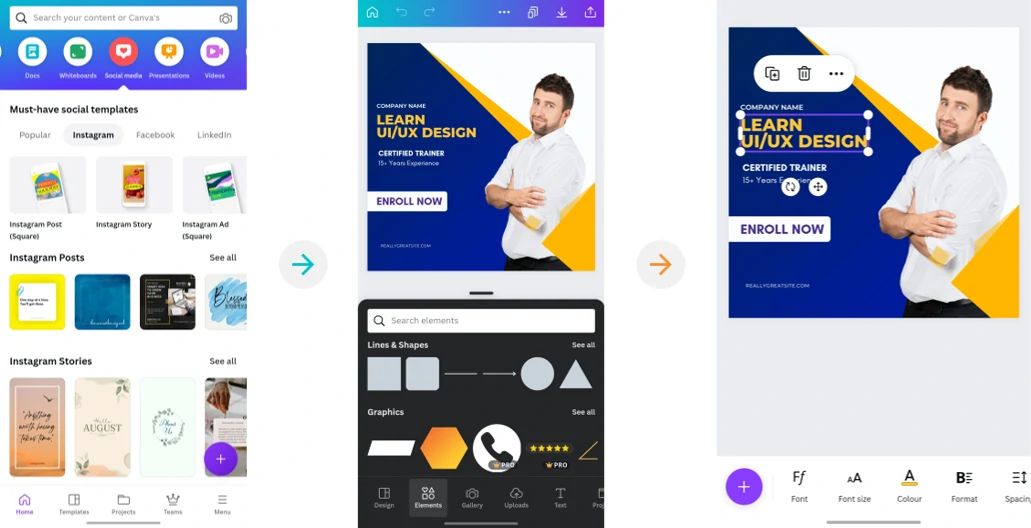
Canva's iOS and Android apps are unusually good — not stripped-down companions but near-full editors. You can start a design on your laptop, tweak it on your phone on the train, and it all syncs through your account. For creators who shoot and post from their phone, that continuity is a genuine advantage.
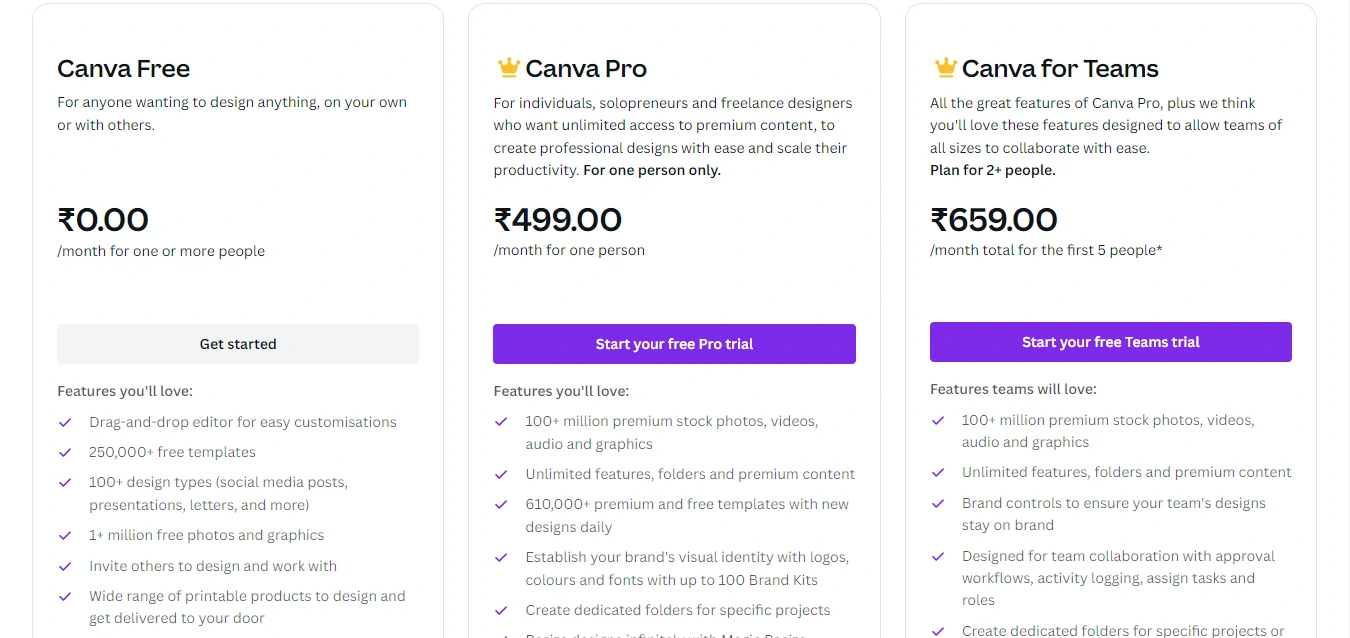
Canva pricing 2026
Canva's pricing is part of why it dominates: the free plan is good enough that many people never pay, and the paid tiers are cheap next to Adobe. Here's the lay of the land as of mid-2026 (always check current pricing):
| Plan | Price | Best for |
|---|---|---|
| Free | $0 | Individuals and casual use |
| Pro | $120/year (or $15/month) | Solo creators and freelancers |
| Teams | From around $10/user/month | Teams needing brand consistency |
| Enterprise | Custom | Large orgs with security needs |
| Education / Nonprofit | Free | Teachers, students and NGOs |
The jump from Free to Pro unlocks the premium template and stock library, Background Remover, Magic Resize, Magic Studio AI credits, Brand Kits, and 1TB of storage. For anyone using Canva for work, Pro pays for itself quickly.
Canva vs the alternatives
Canva isn't the only option, and being honest about where it loses is what makes the praise mean something. Here's how it stacks up against the tools people actually compare it to:
| Tool | Best for | Learning curve | Free plan | Starting price |
|---|---|---|---|---|
| Canva | All-round design, speed, teams | Very easy | Yes (excellent) | $120/yr Pro |
| Adobe Express | Quick social + Adobe stock | Easy | Yes | ~$10/month |
| Figma | UI/UX and precise vector design | Steeper | Yes | ~$15/editor/mo |
| Adobe Photoshop | Pro photo and pixel editing | Steep | No (trial) | ~$23/month |
The short version: pick Canva for speed, breadth and collaboration; pick Figma if you design interfaces or need precise vector control; pick Photoshop or the Affinity apps (now Canva-owned) for serious photo and pixel work; pick Adobe Express if you're already deep in the Adobe ecosystem and want its stock library. For most people making marketing and social content, Canva is simply the most efficient choice.
Canva pros and cons
| Pros | Cons |
|---|---|
| Easiest design tool to learn — usable in minutes | Not a pixel-level editor like Photoshop |
| 610,000+ templates and 100M+ stock assets | Template-led work can look generic |
| Genuinely useful free plan | Best features locked behind Pro |
| Magic Studio AI built into the editor | Can lag on huge, complex designs |
| Real-time collaboration and Brand Kits | Limited offline use — web-first |
| One tool for social, print, video, docs, decks | Less precise export controls than pro tools |
Is Canva worth it in 2026?
Yes — for the right person. If you create marketing, social content, presentations or branded assets and you're not a professional designer, Canva is the highest-value tool you can buy. The free plan covers casual use, and Pro at $120/year is a rounding error next to the time it saves and the freelance design fees it replaces. For teams, the collaboration and Brand Kit features make it worth far more than the per-seat price.
It's not worth it as your only tool if your work is professional photo retouching, detailed illustration, or UI/UX design — you'll outgrow it and want Photoshop, Illustrator or Figma. But even then, plenty of pros keep Canva around for the fast, everyday jobs those tools make slow.
Where Canva falls short
The honest caveats, because no tool is perfect:
- It's not a precision editor. You don't get true layers, curves, masks or fine typographic control. For anything that needs exactness, you'll feel the ceiling.
- Designs can look "Canva-made." Because everyone uses the same templates, lazy edits look generic. The fix is real customisation — change the layout, not just the text.
- The good stuff costs money. Background Remover, Magic Resize, most premium assets and the bigger AI allowances are Pro-only. The free plan is great, but you'll bump into paywalls.
- Performance dips on big projects. Long multi-page presentations or designs stuffed with elements can get sluggish in the browser.
- It needs the internet. It's web-first; offline editing is limited, so a bad connection stops you.
None of these are dealbreakers for its target user — they're the trade-offs of an easy, all-in-one, cloud tool. Know them going in and Canva rarely disappoints.
Frequently asked questions
After years of daily use, Canva is still the design tool I recommend first to almost everyone who isn't a professional designer. Start on the free plan, and upgrade to Pro the moment you want Background Remover, Magic Resize and the premium library — that's where it goes from "handy" to "I can't work without this."