You hit "Edit with Elementor," the green progress bar crawls to the middle, and then it just sits there — the spinning dots, the Elementor logo, and a page that never loads. Nine times out of ten this is not a broken install. It's a resource limit or a script conflict choking the editor before it can finish booting, and it's almost always fixable in a few minutes without losing a single thing on your page.
I've cleared this exact screen on dozens of client sites. The fastest path is to work from the cheapest fix to the most involved: clear the browser layer, raise the server limits, then hunt for the conflict. Below is the same ordered checklist I run, so you fix it on the first or second try instead of randomly toggling settings.
Why Elementor gets stuck on the loading screen
The Elementor editor is a heavy JavaScript application that loads inside your WordPress admin. To open a page it has to: request the editor files, pull in your page's data, initialize every widget and add-on, and render a live preview of your site. If any one of those steps stalls or errors out, the loader freezes wherever it was — usually around the halfway mark.
That means the loading screen is a symptom, not a diagnosis. The real cause is almost always one of these five buckets:
- Server resource limits (PHP memory, execution time, input vars) are too low.
- A browser-side problem — stale cache, an extension, or an ad blocker.
- A plugin or theme conflict throwing a JavaScript error that halts the boot.
- A server or security layer (mod_security, a firewall, or aggressive caching) blocking Elementor's requests.
- An outdated PHP version or mismatched Elementor / Elementor Pro versions.
Work through the sections in order. Each one rules out a bucket, so by the end you'll not only have a working editor — you'll know exactly what caused it.
The 60-second triage
Before deep troubleshooting, do these three quick checks. They resolve a surprising share of cases on their own.
- Open the page in an incognito or private window. If it loads there, your problem is browser cache or an extension (jump to the browser section).
- Try editing a brand-new blank page. If the blank page opens but one specific page won't, that page has a corrupted element or is simply too heavy.
- Open your browser's developer console (press F12, then the "Console" tab) and reload the editor. A red error message there often names the exact plugin or file at fault.
Fix 1: Clear the browser layer (cache, extensions, hard reload)
This is the cheapest fix and it works more often than people expect, because the editor caches heavily and a single stale script can hang the loader.
- Do a hard refresh on the editor screen: Ctrl+Shift+R on Windows, or Cmd+Shift+R on Mac.
- Clear your browser cache and cookies for your site, then log back in.
- Disable ad blockers and privacy extensions (uBlock, Ghostery, Privacy Badger) for your domain — they sometimes block Elementor's internal requests.
- Test in a different browser entirely. If Chrome hangs but Firefox works, you've confirmed it's local to the browser.
If a private window loads the editor fine, stop here — the fix is just clearing your normal browser's cache and whitelisting your site in your extensions.
Fix 2: Raise your server resource limits
This is the most common real cause. Elementor recommends a meaningfully higher PHP configuration than a default WordPress install ships with, and budget hosts often set these far too low. When memory or execution time runs out mid-load, the editor freezes silently.
Elementor's recommended minimums are worth memorizing:
| Setting | Default on cheap hosts | Elementor recommends |
|---|---|---|
| WP Memory Limit | 64M–128M | 256M or higher |
| max_execution_time | 30 | 300 |
| max_input_vars | 1000 | 10000 |
| post_max_size | 8M | 64M |
| upload_max_filesize | 2M | 64M |
You can confirm your current values inside WordPress under Elementor, then System Info — it lists every relevant limit and flags the ones below spec in red.
Raise the WordPress memory limit
Add these lines to your `wp-config.php` file, just above the line that says "That's all, stop editing!":
Raise PHP limits
If memory alone doesn't fix it, raise the PHP-level limits. On most hosts you can do this through the control panel (look for a "PHP Configuration," "MultiPHP INI Editor," or "Select PHP Version" tool) and set:
If your host uses a `.htaccess` file and allows overrides, you can add:
Underpowered hosting is the root cause behind a huge share of these freezes. If you're on a $2 shared plan and constantly fighting limits, a LiteSpeed-based host with sane defaults will save you hours — Elementor simply runs smoother on faster servers.
Fix 3: Switch the editor loader method
Elementor has a built-in setting designed for exactly this problem. Some server configurations don't play nicely with how the editor normally loads its preview, and flipping this one toggle resolves the freeze instantly.
Go to Elementor, then Settings, then the Advanced tab, and set "Switch Editor Loader Method" to Enable. Save, then reopen the editor.
This forces Elementor to load its scripts a different way that sidesteps common server and caching conflicts. It's a 30-second change and one of the highest-hit fixes after raising limits — always try it before the heavier conflict-hunting below.
Fix 4: Find the plugin or theme conflict
If the limits are healthy and the loader still hangs, something is throwing a JavaScript error during boot. The reliable way to find it is the classic isolate-and-reintroduce method.
Test with a default theme
Temporarily switch to a default WordPress theme like Twenty Twenty-Four, or to the lightweight Hello Elementor theme. If the editor loads, your theme was the conflict — contact the theme author or keep the lightweight theme.
Deactivate plugins in bulk, then reactivate one by one
- Deactivate every plugin except Elementor and Elementor Pro.
- Open the editor. If it loads, a plugin was the culprit.
- Reactivate plugins one at a time, reopening the editor after each, until the freeze returns. The last plugin you switched on is your conflict.
The usual suspects are other page builders, heavy third-party Elementor add-on packs, aggressive optimization plugins, and security plugins. Pay special attention to anything that minifies or combines JavaScript.
If you can't risk deactivating on a live site
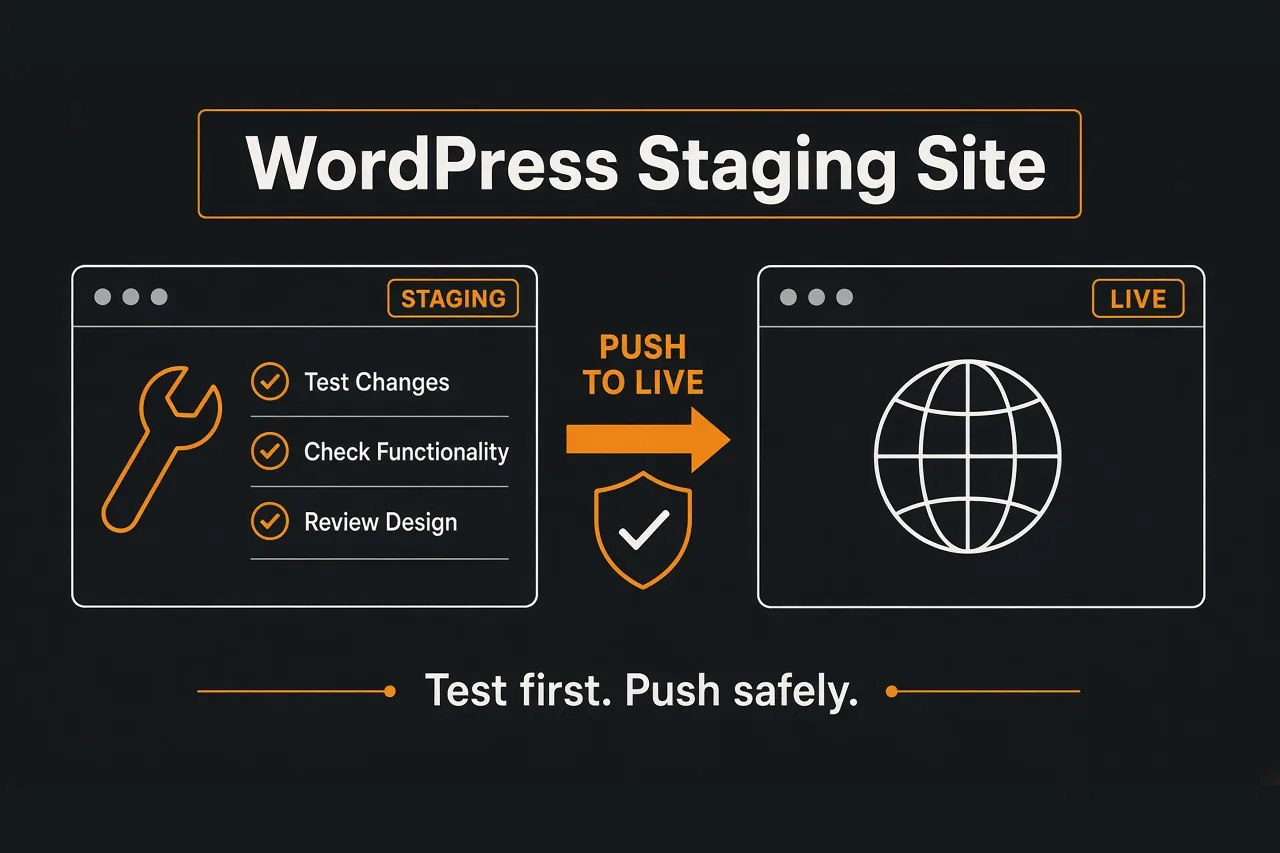
Use a staging copy. Most good hosts offer one-click staging, and Elementor's own Safe Mode (below) lets you test without touching your live plugins at all.
Fix 5: Use Elementor Safe Mode
Safe Mode is Elementor's purpose-built diagnostic. It loads the editor with only Elementor active and a default theme — without actually deactivating anything on your live site. It's the safest way to confirm whether the problem is Elementor itself or something around it.
You can enable it two ways:
- From the stuck loading screen, a "Safe Mode" link sometimes appears after the loader times out — click it.
- Otherwise, go to Elementor, then Tools, then the General tab, and enable Safe Mode there.
If the editor loads in Safe Mode, you've proven the problem is a plugin or theme conflict, not Elementor — go back to Fix 4 to find which one. If it still hangs in Safe Mode, the cause is server-side (limits, PHP version, or a security layer), so focus on Fixes 2, 6, and 7.
Fix 6: Check PHP version and update everything
An outdated PHP version or a version mismatch between Elementor and Elementor Pro is a quiet but real cause of editor failures.
- Run PHP 8.1 or newer. Elementor dropped support for very old PHP, and old versions are both slower and buggier. Update it from your host's "Select PHP Version" tool.
- Update Elementor and Elementor Pro together. Running mismatched versions (a new free core with an old Pro, or vice-versa) regularly breaks the editor. Update both to the latest stable release at the same time.
- Update WordPress core and your theme too, so nothing is running on an unsupported base.
Fix 7: Rule out server security and firewall blocks
If Safe Mode still freezes and your limits are fine, the block is happening at the server or security layer — something is silently refusing Elementor's requests.
- mod_security: this Apache firewall module sometimes blocks Elementor's AJAX/REST calls. Ask your host to whitelist your site or temporarily disable mod_security to test.
- WordPress REST API: Elementor relies on it. If a security plugin or your host has disabled or restricted the REST API, the editor can't load. Re-enable it.
- Server-level or CDN caching: an aggressive cache (or Cloudflare in a strict mode) can serve stale editor assets. Purge all caches and, if you use Cloudflare, enable Development Mode while you work.
- Check the SSL/HTTPS setup. A mixed-content situation (site loading some assets over http on an https site) can stall the preview frame.
This bucket is where a quick host support ticket pays off — they can read the server error logs and see precisely which request is being denied, which you can't see from the WordPress dashboard.
A quick decision table
Use this to jump straight to the likely fix based on what you observe:
| What you see | Most likely cause | Go to |
|---|---|---|
| Loads fine in incognito | Browser cache / extension | Fix 1 |
| System Info shows red limits | Low server resources | Fix 2 |
| Hangs on every page, even blank | Loader method or conflict | Fix 3, Fix 4 |
| Safe Mode loads fine | Plugin or theme conflict | Fix 4 |
| Safe Mode still hangs | Server, PHP, or security | Fix 6, Fix 7 |
| Only one heavy page hangs | Page too large / corrupt element | See below |
When only one specific page won't load
If every page opens except one, that page is either too heavy or has a corrupted element. Try these:
- Roll back to a previous version using Elementor's built-in revision history (it saves automatically).
- Reduce the page's complexity — extremely long pages with hundreds of widgets can exceed max_input_vars (the value you raised in Fix 2). Raising that limit frequently fixes a single stubborn page.
- Recreate the page in sections by copying chunks into a new page to find the element that breaks it.
Frequently asked questions
The bottom line
A stuck Elementor loading screen looks alarming but is one of the most predictable problems in WordPress. Work the list in order: clear the browser, confirm your server limits meet Elementor's spec, flip the loader method, then isolate conflicts with Safe Mode. One of those steps fixes the overwhelming majority of cases — and you'll know exactly which, so it doesn't surprise you again.
If you've worked the whole list and the editor still won't load, the issue is almost always the server underneath it. A capable, Elementor-friendly host removes the resource limits and security quirks that cause most of these freezes in the first place.
If you'd rather hand the whole thing off, fixing broken Elementor builds and slow WordPress sites is exactly what I do for clients: