A blank browser tab where your WordPress site used to be is a special kind of panic. No logo, no error text, just white. Or worse: the critical error screen that says check your admin email, and that email never arrives.
WordPress calls this the White Screen of Death. Under the hood it is almost always a PHP fatal error, a memory limit, a bad plugin or theme, or corrupted files. Since WordPress 5.2 you also get Recovery Mode, which is designed to replace that blank screen with a path back into the admin.
This guide walks the fix in the order that wastes the least time: pick the screen you see, use Recovery Mode when the email lands, then debug logging, plugin and theme isolation, memory, and core repair.
It pairs with my safe WordPress update workflow and backup guide, because the best WSOD fix is the restore you already tested.
Some links are affiliate links; they don't change your price.
What is the WordPress White Screen of Death?
It is a blank page where WordPress should have rendered HTML. WordPress.org's common errors handbook says both PHP errors and database problems can show up this way. Visitors see nothing useful. You often cannot reach wp-admin either.
Since WordPress 5.2, many fatal errors no longer stay fully blank. Instead you see: "There has been a critical error on this website. Please check your site admin email inbox for instructions." That message is Recovery Mode kicking in. Treat it as the same family of problem as the classic white screen, with a better starting move.
| What you see | What it usually means | First move |
|---|---|---|
| Pure white / empty tab | Fatal error before output, display_errors off, or fatal handler never reached | File manager or SFTP + enable WP_DEBUG_LOG |
| Critical error screen + admin email | Fatal error caught by Recovery Mode | Open the Recovery Mode login link |
| Critical error screen, no email | Same as above, but mail failed or was filtered | Spam folder, then FTP plugin rename + debug log |
| Admin white, front end OK (or reverse) | Theme/admin plugin conflict or memory on one context | Isolate plugins/themes for that side |
| Maintenance message after an update | Leftover .maintenance file | Delete .maintenance in the site root |
Do not start by reinstalling WordPress. Most WSODs reverse with one bad plugin folder renamed or one line in wp-config.php.
What should you do before you change anything?
Two checks save you from making a broken site worse.
First, confirm you still have a recent backup of files and database. If you do not, take one now if the host panel or SFTP still works. If nothing loads and you have no backup, stop guessing and restore from the host's snapshot before you keep editing. My WordPress backup guide covers files, database and restore tests.
Second, note what changed right before the blank screen: a plugin update, a theme switch, a PHP version bump, an edit to functions.php, or a migration. That change is your prime suspect. If the blank screen appeared during an update, follow the rollback path in how to update WordPress safely once you can log in again.
How do you use WordPress Recovery Mode?
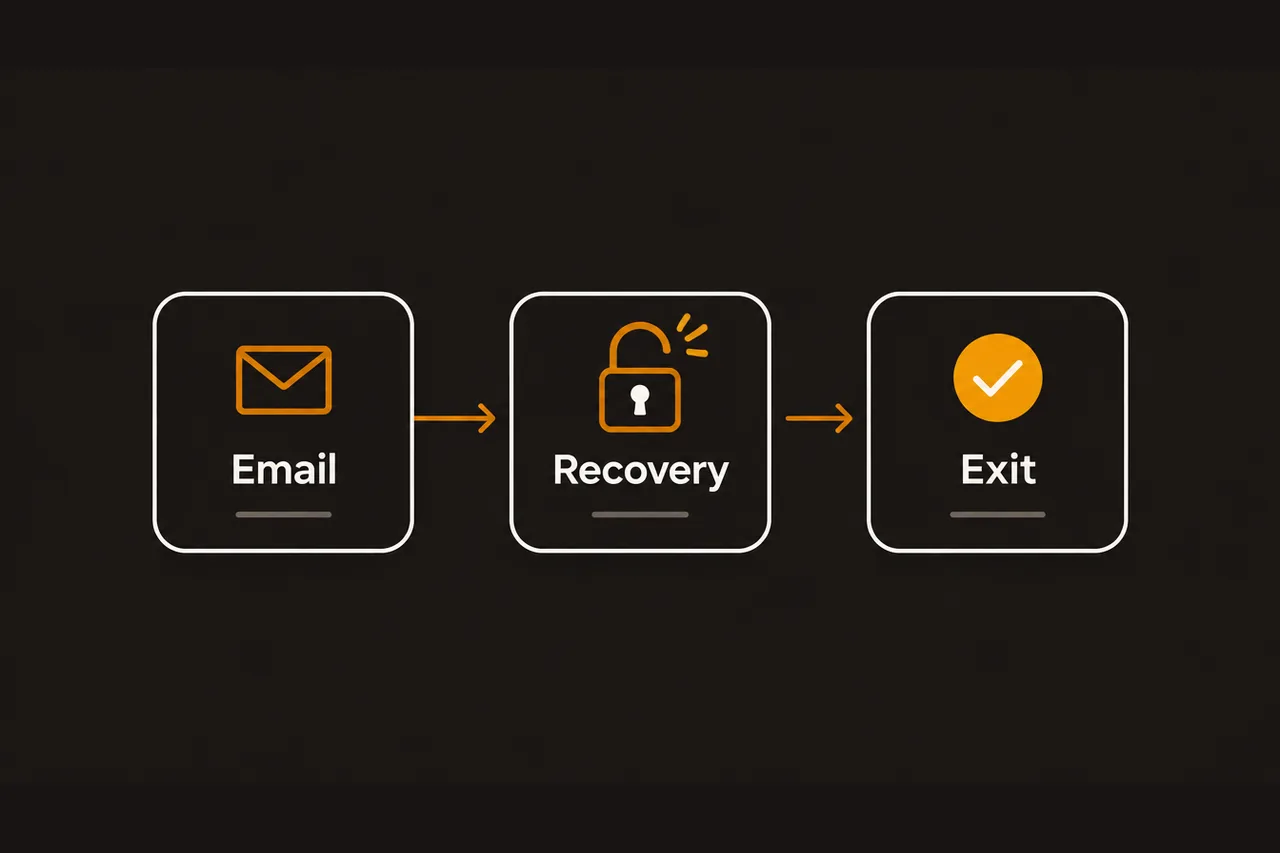
Recovery Mode is the built-in safe path WordPress added in 5.2. When a fatal PHP error hits a normal page load, WordPress can pause the faulty plugin or theme for your admin session, email the site administrator a special login link, and show visitors the critical error notice instead of a silent white page.
Do this when the critical error screen appears:
- Check the administrator email inbox and spam folder for a message about recovery mode.
- Open the link in that email, then log in. You should see a notice that Recovery Mode is active.
- Read the admin notices that name the plugin or theme that failed.
- Deactivate that plugin (Plugins screen) or switch themes (Appearance, Themes). Prefer a default theme such as a Twenty Twenty-* release when you need a known-good theme.
- Fix or replace the broken code if you edited functions.php yourself.
- Click Exit Recovery Mode in the admin toolbar and reload the front end.
WordPress.org notes an important mail catch: plugins that change how WordPress sends email may not load if the fatal error happens earlier. In that case the recovery email comes from the server itself and can land in spam or get blocked. If the email never arrives, skip to the FTP isolation steps below. Do not sit refreshing your inbox for an hour.
How do you turn on WordPress debug mode for a white screen?
When Recovery Mode does not help, or you have a pure white screen, you need the error text. WordPress debug constants live in wp-config.php. Official guidance is to log errors to a file and keep them off the public HTML.
Open wp-config.php in your host file manager or over SFTP. Add these lines above the "That's all, stop editing!" comment:
Reload the broken page once, then download wp-content/debug.log. The last fatal error line usually names a plugin path, a theme file, or an "Allowed memory size exhausted" message.
On a local or staging copy only, you can also disable the fatal error handler so errors print on screen:
Do not ship that block to production. After you fix the site, set WP_DEBUG back to false, remove the temporary constants, and delete or protect debug.log. A public debug.log is a security problem; treat it like the rest of your WordPress security checklist.
How do you isolate a bad plugin or theme?
If the log points at a plugin, or you have no log yet but suspect an update, deactivate plugins without the admin UI.
WordPress.org's handbook method:
- Connect with SFTP or the host file manager.
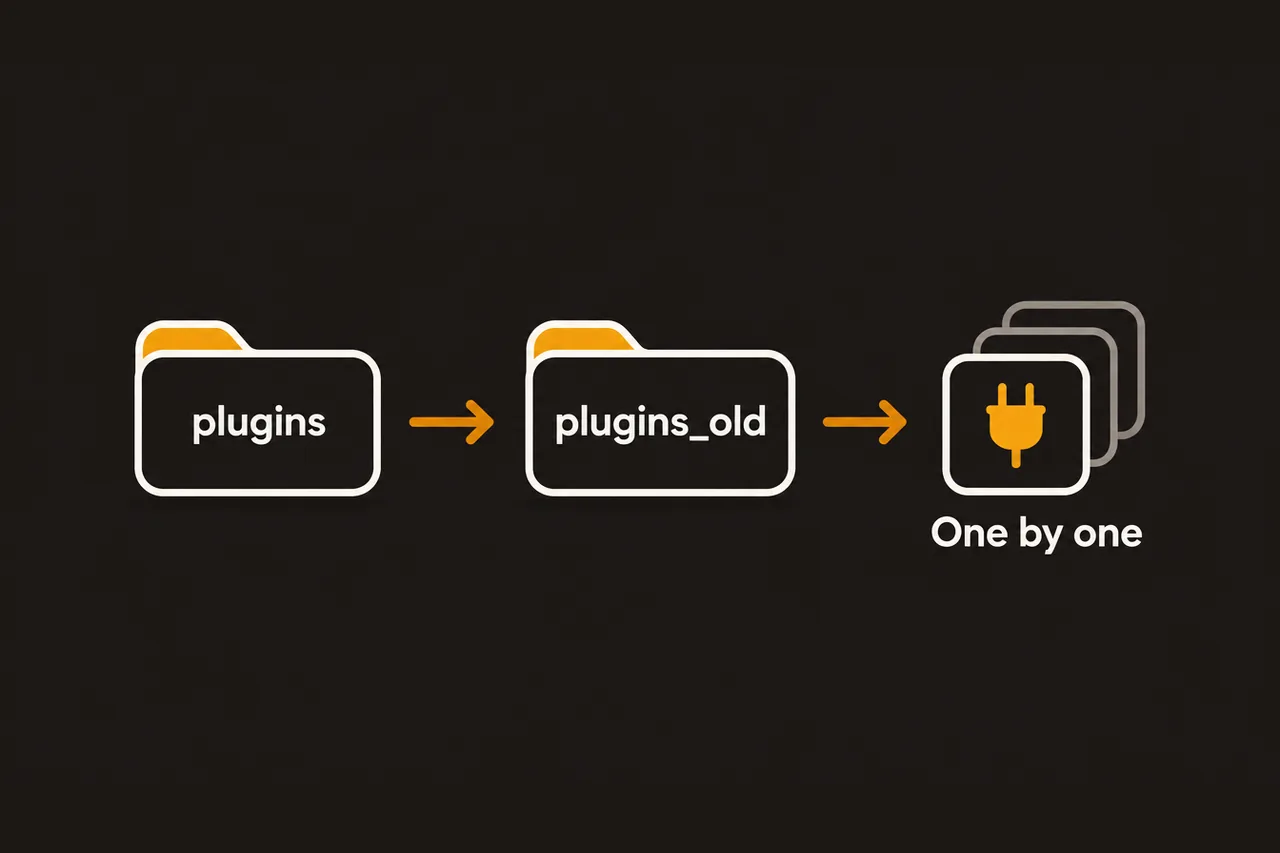
- Rename wp-content/plugins to plugins_old. That deactivates every plugin at once.
- Reload the site. If it comes back, the conflict is inside plugins.
- Create a new empty plugins folder, then move plugin folders back from plugins_old one at a time (or in small groups), reloading after each move, until the site breaks again. The last folder you moved is the culprit.
- Leave that plugin deactivated, update it, replace it, or report the bug. Restore the other plugins.
For a theme:
- In wp-content/themes, rename the active theme's folder (add -broken to the name).
- WordPress should fall back to a default theme. If no default theme is installed, upload a Twenty Twenty-* theme from WordPress.org first.
- Confirm the front end loads, then decide whether to fix the custom theme or stay on the default until you have a patched copy.
Page builders deserve a special note. An Elementor update that white-screens the editor is often the same class of fatal error. If the blank screen is limited to the builder UI, my guide on Elementor stuck on the loading screen covers mismatched free/Pro versions and memory limits that show up there first.
How do you fix a WordPress memory limit white screen?
When debug.log says "Allowed memory size of … bytes exhausted", WordPress (or PHP) ran out of memory while loading the page. Official docs say WordPress tries to raise PHP memory to 40MB on a single site and 64MB on multisite by default, with a separate higher ceiling for admin tasks (WP_MAX_MEMORY_LIMIT defaults to 256MB).
In wp-config.php, above the stop-editing line, you can request more:
Two catches matter more than the numbers:
- Your host's PHP memory_limit can block the raise. If wp-config changes do nothing, raise the limit in the hosting panel, in php.ini, or by asking support.
- Raising memory hides a runaway plugin only until the next spike. After the site loads again, still find and fix or remove the plugin that ate the RAM.
If shared hosting will not let you raise memory, or Site Health keeps flagging low limits while you run a page builder, WooCommerce and a heavy theme together, move to a plan with real headroom. I recommend a Hostinger KVM VPS when you have outgrown shared PHP caps and need SSH, tunable PHP memory and room to grow without another white screen after every plugin add.
What else causes a white screen after an update?
A few non-plugin causes show up often enough to check once isolation and memory are clear.
Leftover maintenance file. After an update, WordPress may leave a .maintenance file in the site root. Visitors then see a maintenance message (or sometimes a blank page depending on the setup). Delete .maintenance over SFTP and reload.
Corrupted core files. A failed auto-update can leave wp-admin or wp-includes incomplete. WordPress.org suggests re-uploading those folders from a fresh WordPress package of the same version, without overwriting wp-config.php or wp-content. Keep a backup first.
PHP version mismatch. A host that jumps PHP versions overnight can fatal on old plugins. Site Health (when you can reach it) flags unsupported PHP. Roll PHP back one version in the panel as a temporary bridge, then update the plugin that broke.
.htaccess damage. Less common for a pure WSOD, more common for 500 errors, but worth renaming .htaccess to .htaccess_old if isolation did nothing and you recently edited permalinks or security rules. Then visit Settings, Permalinks and save to regenerate rules once admin works.
Database connection errors are a different message ("Error establishing a database connection") and a different fix path. Do not treat them as a classic WSOD even though both can look empty in some browsers. If that is the message you see, follow my guide to fixing the WordPress database connection error instead.
What decision rule should you follow next time?
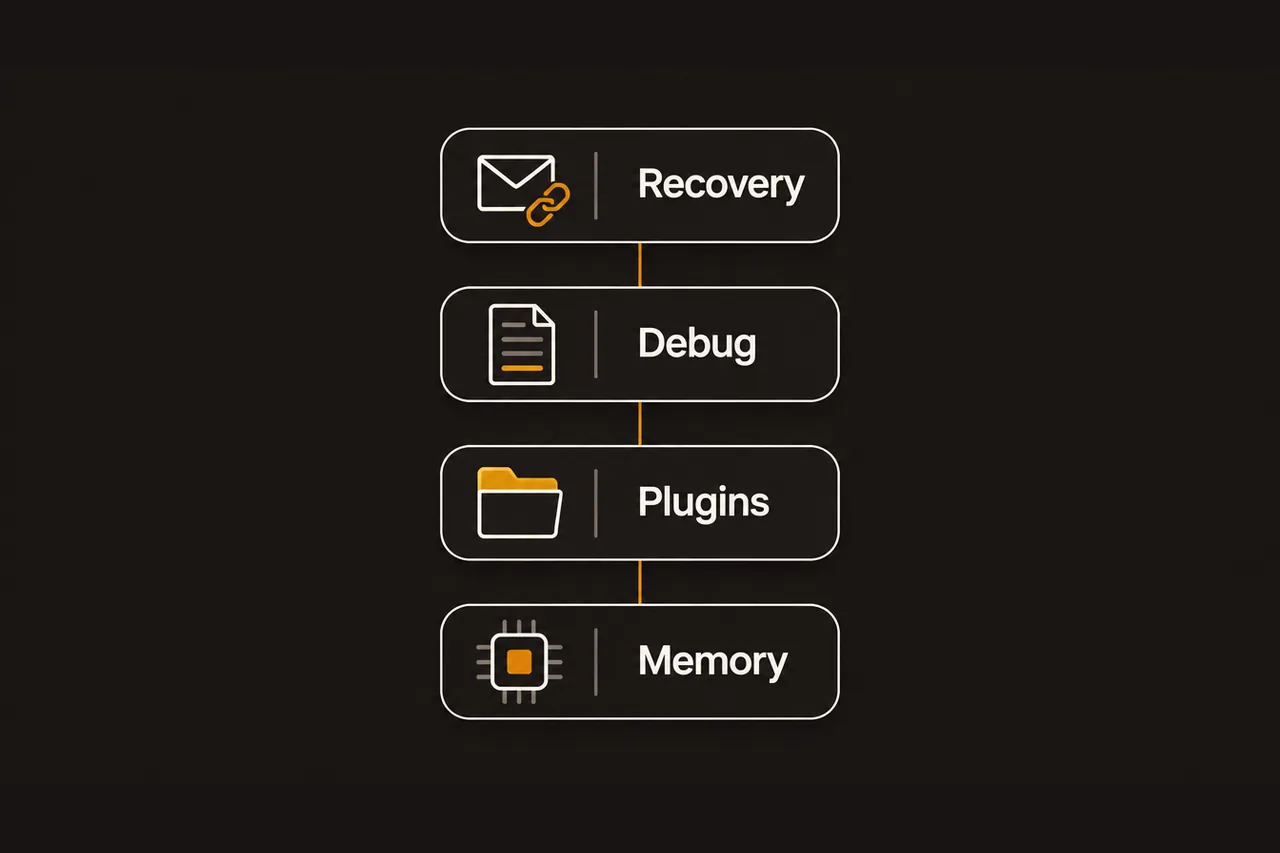
Use this order every time so you do not thrash:
- Critical error email arrived → Recovery Mode → deactivate the named plugin or theme → Exit Recovery Mode.
- No email / pure white → enable WP_DEBUG_LOG → read debug.log → fix the named file or raise memory if exhausted.
- Log unclear → rename plugins to plugins_old, then restore one by one → rename the active theme folder if plugins were clean.
- Memory exhausted and host blocks raises → upgrade hosting (Hostinger KVM is my default pick) and remove the greedy plugin.
- Still broken after isolation → restore the last known-good backup, then re-apply changes on staging.
Prevention is dull and effective: update on staging first, keep auto-backups off-server, and avoid editing theme files directly. That is the same discipline as my update and backup guides.
FAQ
If you do one thing the next time WordPress goes white, check email for Recovery Mode before you touch files. If you do two, turn on debug logging instead of guessing. And if memory limits keep winning, fix the plugin that is hungry — then give the server enough RAM that a single update cannot take the shop offline.