You can write the best post on a topic and still get nowhere in Google if Google can't find it, can't read it, or decides another URL is the "real" version. That's what technical SEO is about. It's the plumbing under your content.
The good news: for most blogs, technical SEO isn't a giant project. It's a short list of checks you do once, then revisit after big changes like a redesign or a host move. You don't need to be a developer for most of them.
This beginner's technical SEO checklist walks through those checks in the order Google meets your site: crawling, rendering, indexing, then page experience. Every rule and number here comes from Google Search Central documentation. If you're new to the content side of SEO, my guide to building topical authority is the companion to this one.

What is technical SEO?
Technical SEO is the work that helps search engines crawl, render and index your pages, and that gives visitors a fast, secure, stable page once they arrive. It's separate from on-page SEO (what you write and how you structure it) and off-page SEO (links and mentions from other sites).
Think of it as three questions Google asks about every URL:
- Can I reach it? That's crawling.
- Can I read and store it? That's rendering and indexing.
- Is it a good page to send people to? That's page experience: speed, HTTPS and mobile friendliness.
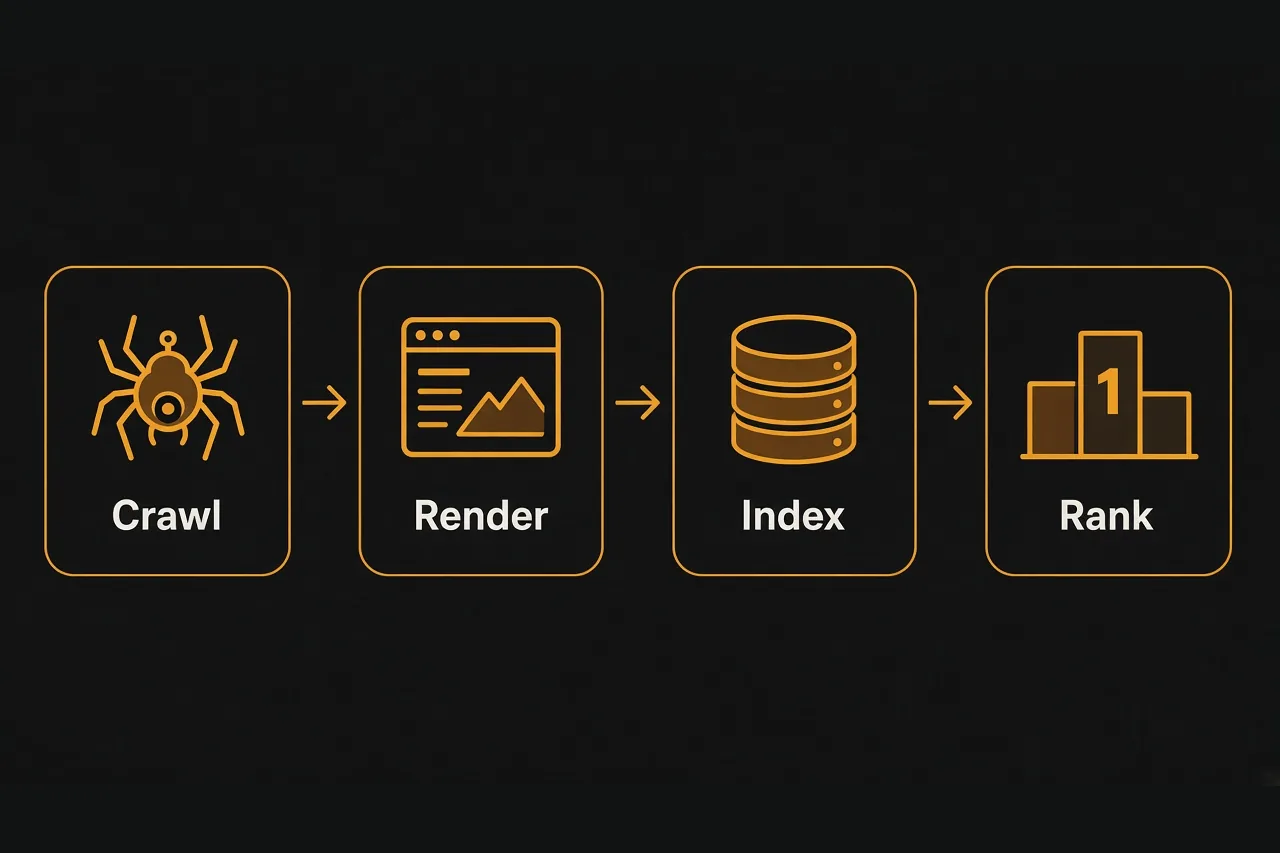
If a page fails the first question, nothing you do on the page matters. That's why technical checks come before keyword tweaks.
How do you check whether Google can crawl your site?
Start with the file Google reads first: robots.txt, at yoursite.com/robots.txt.
Google's own definition is short. A robots.txt file tells crawlers which URLs they can access, and it's used mainly to avoid overloading your site with requests. Google is blunt about what it isn't: it's not a way to keep a page out of Google.
Check three things:
- Your important sections aren't disallowed. A leftover "Disallow: /" from a staging site is the classic disaster.
- CSS and JavaScript files aren't blocked, or Google can't render your pages properly.
- The file lists your sitemap with a Sitemap: line, so crawlers can find it.
A safe, minimal robots.txt for a small blog looks like this:
I wrote a full breakdown of how crawlers read these rules in my robots.txt and crawling etiquette guide. It's written for people building scrapers, but the rules are the same ones Googlebot follows.
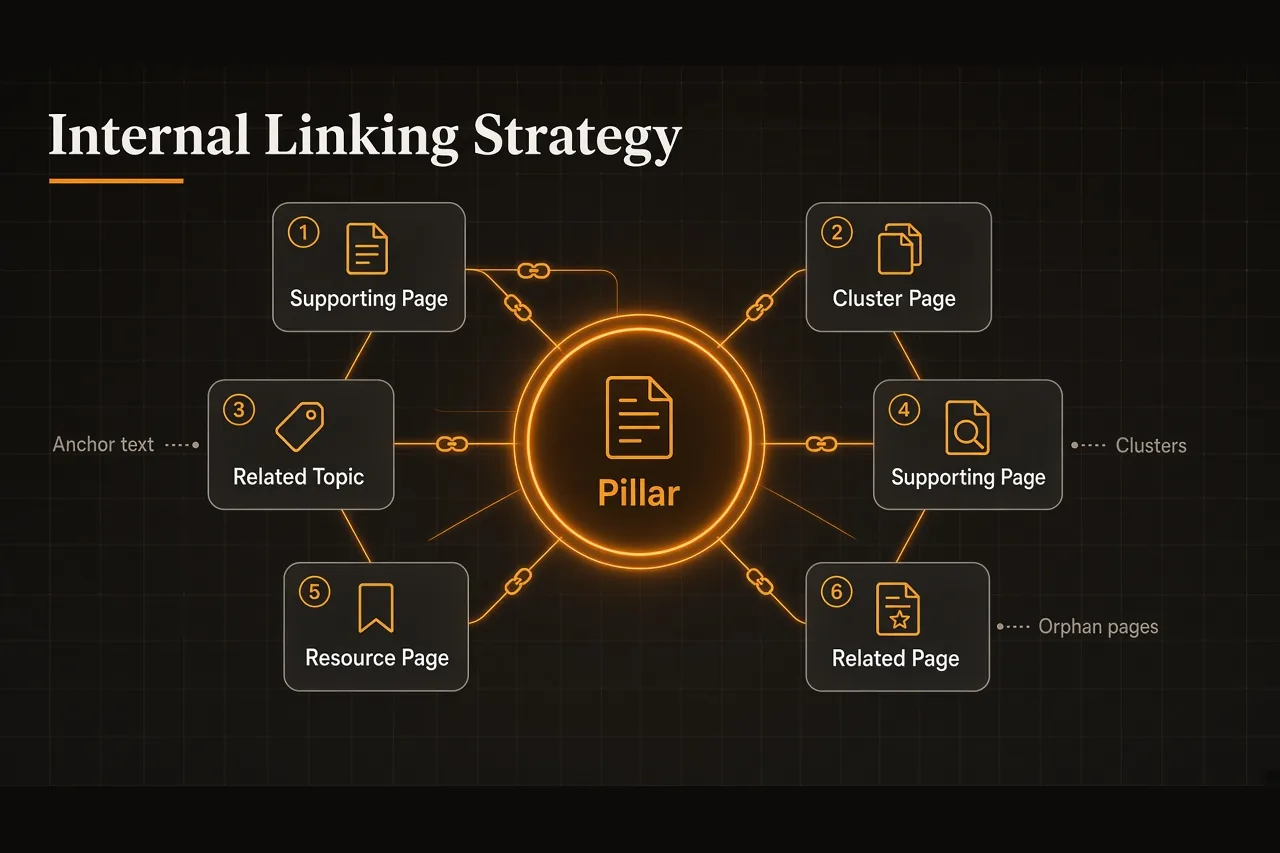
The second crawl check is internal links. Google discovers most pages by following links. A post with no internal links pointing to it, an orphan page, is hard to find even if it's in your sitemap. Every new post should get at least one link from an older, related post.
How do XML sitemaps help indexing?
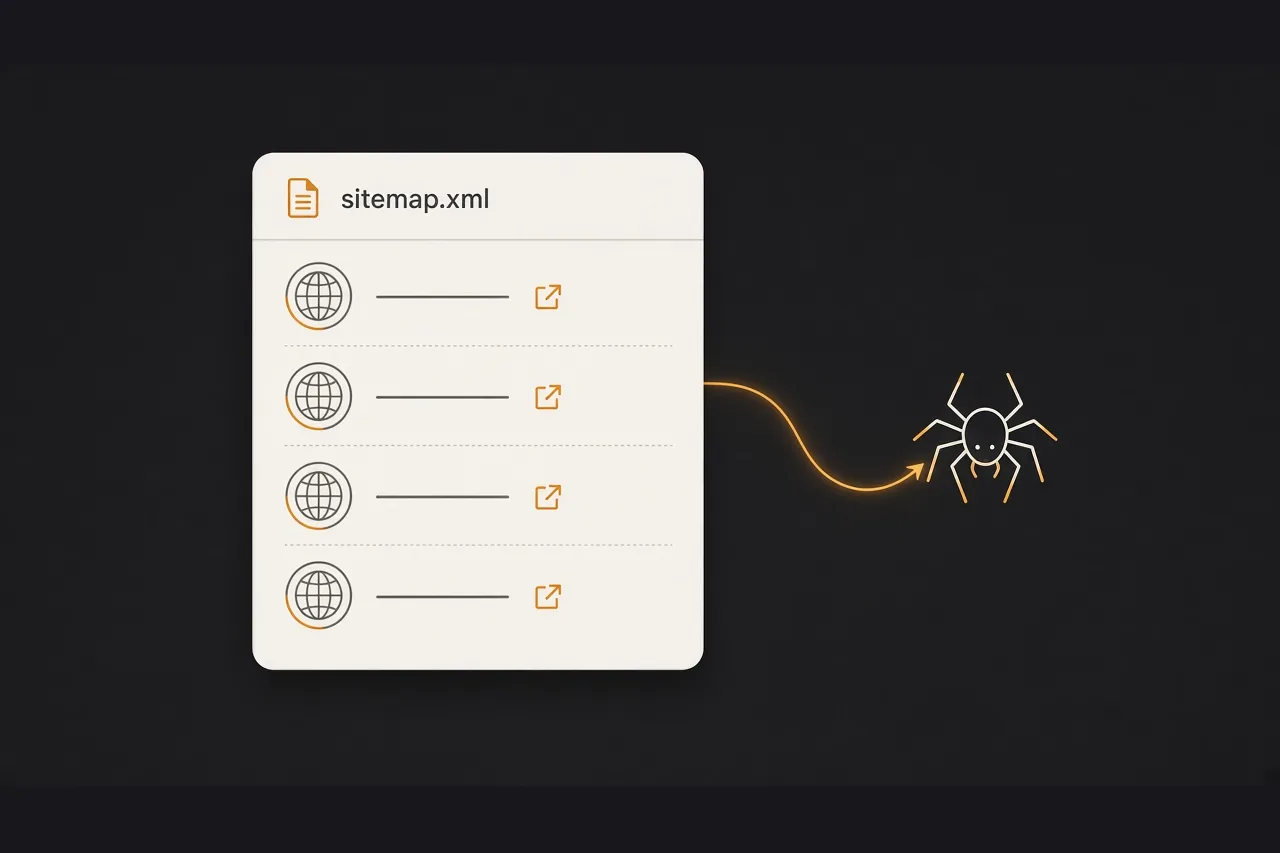
An XML sitemap is a list of the URLs you want in search results. It doesn't force Google to index anything. Google calls a sitemap submission "merely a hint", but it does help Google discover new and updated pages faster.
The rules that matter, per Google's sitemap documentation:
- One sitemap can hold up to 50,000 URLs or 50 MB uncompressed. Bigger sites split it and use a sitemap index file.
- Use full, absolute URLs (https://example.com/page, not /page).
- List only canonical URLs you actually want in search, not redirects, noindexed pages or duplicates.
- Keep the lastmod date honest. Google says it uses lastmod only when it's consistently accurate, and a copyright-year change doesn't count as an update.
Most platforms generate a sitemap for you. WordPress has a built-in one at /wp-sitemap.xml, and SEO plugins replace it with their own. Then submit it once in Google Search Console under Sitemaps, and add the Sitemap: line to robots.txt. For the full walkthrough, including lastmod, sitemap indexes and fixing report errors, see my guide on how to write an XML sitemap and submit it to Google.
Which pages should you keep out of Google?
Some pages shouldn't rank: thank-you pages, internal search results, tag archives with two posts, staging copies. For these, use noindex, not robots.txt.
This is one of the most common technical SEO mistakes, so it's worth being precise. Google's docs explain that for noindex to work, the page must not be blocked by robots.txt. If robots.txt blocks the page, Googlebot never sees the noindex tag, and the URL can still show up in results if other pages link to it.
For PDFs and other non-HTML files, send the same rule as an X-Robots-Tag: noindex HTTP header instead. And if a page should disappear from search quickly, Google points to its removals tool. noindex alone only takes effect after Googlebot recrawls the page.
How do canonical tags fix duplicate content?
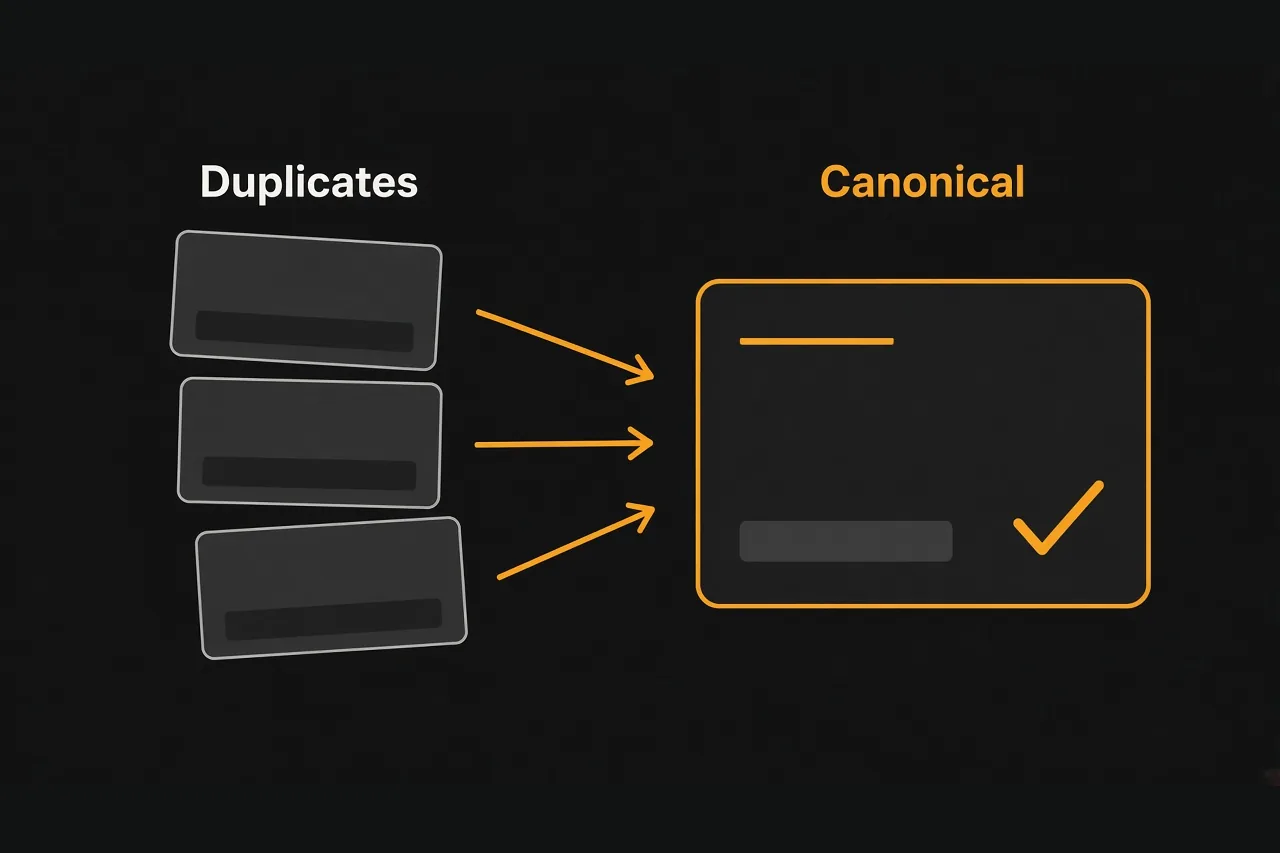
Most sites have duplicate URLs without meaning to. The same post can load with and without a trailing slash, with tracking parameters like ?utm_source=, or on both www and non-www.
A canonical tag tells Google which version is the main one. Google lists three signals, from strongest to weakest: redirects, rel="canonical" link tags, and sitemap inclusion. They stack, so using two or three together raises the chance your preferred URL wins.
Google's best practices boil down to a few rules:
- Put a self-referencing canonical on every page, using an absolute URL.
- Don't use robots.txt or noindex to pick a canonical. Google warns that noindex removes the page from Search entirely.
- Don't send mixed signals, like one URL in the sitemap and another in the canonical tag.
- Link internally to the canonical URL, not to parameter or duplicate versions.
If you've merged or retired a post, use a permanent 301 redirect to the replacement instead. Google treats redirects as the strongest canonical signal.
Does your site work on mobile?
Google uses the mobile version of your content, crawled with its smartphone agent, for indexing and ranking. That's mobile-first indexing. Whatever is missing on mobile is effectively missing for Google.
Google recommends responsive design, the same HTML on the same URL for every device, as the easiest setup to maintain. Most modern themes already do this. Then check:
- The main content, headings and images on mobile match desktop. Moving content into tabs or accordions is fine, deleting it isn't.
- Important content doesn't load only after a click or swipe. Google won't load content that needs user interaction.
- Titles, meta descriptions, structured data and image alt text are the same on both versions.
If your site sends JavaScript-heavy pages, open Search Console's URL Inspection tool and look at the rendered HTML. That's what Google actually saw.
What are Core Web Vitals, and what scores should you aim for?
Core Web Vitals are three metrics Google uses to measure real-world page experience. Google's documentation gives these targets:
| Metric | What it measures | Good score |
|---|---|---|
| Largest Contentful Paint (LCP) | Loading: when the main content appears | Within 2.5 seconds |
| Interaction to Next Paint (INP) | Responsiveness to clicks and taps | Under 200 milliseconds |
| Cumulative Layout Shift (CLS) | Visual stability: how much the layout jumps | Under 0.1 |
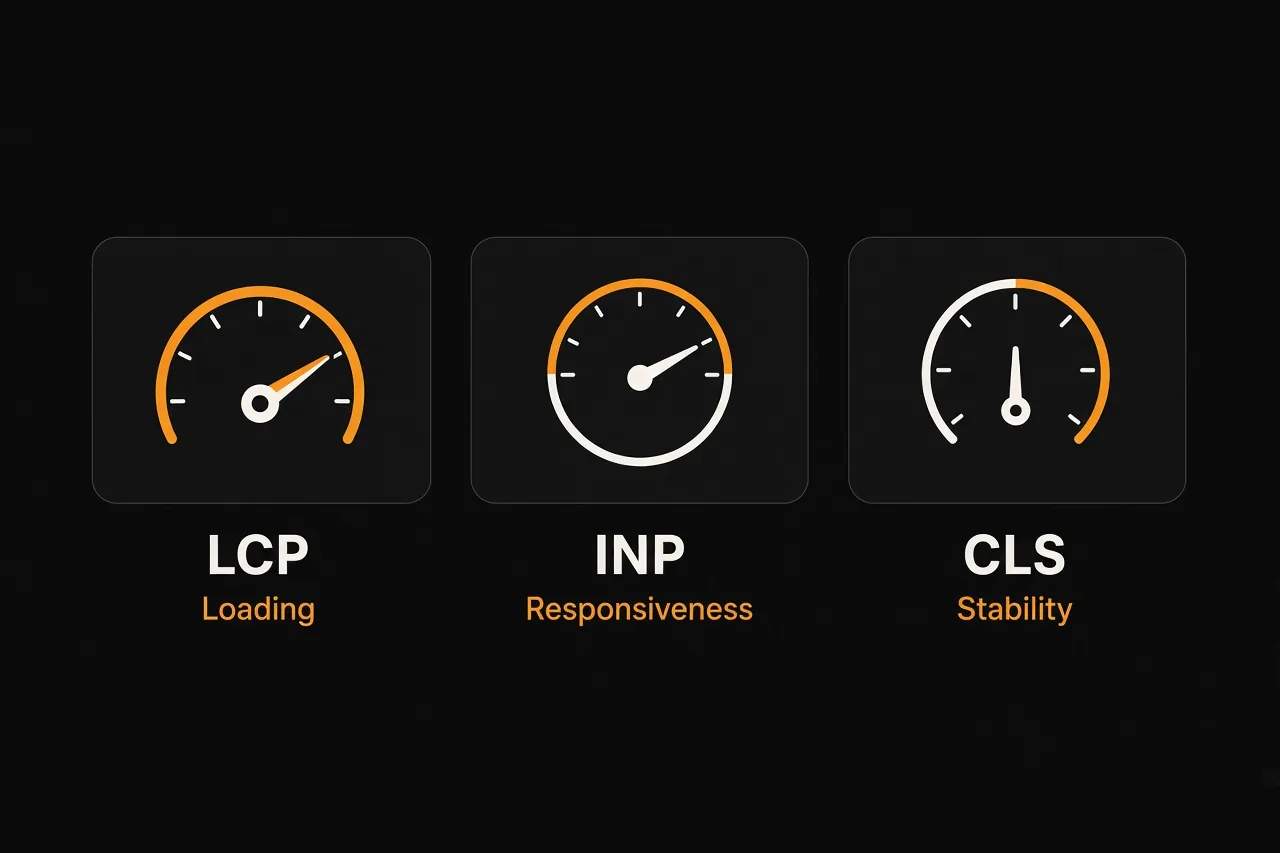
INP replaced First Input Delay as the responsiveness metric in March 2024, so older guides that still mention FID are out of date.
Google is careful about how much these matter. It says good Core Web Vitals align with what its ranking systems reward, but they won't lift weak content above a more relevant page. Treat them as a tie-breaker and a user-experience fix, not a shortcut.
The usual fixes are boring and effective: compress and size images properly, set width and height on images and embeds so the layout doesn't jump, cut heavy scripts, and use decent hosting with caching. My WordPress performance checklist goes through each of these step by step, and if your hosting is the bottleneck, here's what to check before choosing WordPress hosting.
Is HTTPS still a technical SEO factor?
Yes. HTTPS is part of Google's page experience signals, and it also affects which URL Google picks as canonical. Google prefers HTTPS over HTTP by default, unless something undermines it.
The things that undermine it, per Google's canonicalization docs:
- An invalid or expired SSL certificate, or one issued for the wrong hostname.
- HTTPS pages that redirect to or through HTTP.
- HTTPS pages with insecure scripts or styles loaded over HTTP.
- HTTP URLs listed in your sitemap instead of HTTPS.
The fix is a site-wide 301 redirect from HTTP to HTTPS, HTTPS-only URLs in your sitemap and canonicals, and ideally HSTS. Most hosts include a free certificate now, so there's rarely a reason to skip this.
Is structured data part of technical SEO?
It's on the edge. Structured data, usually JSON-LD in the page head, describes what a page is: an article, a product, a review, a breadcrumb trail. It doesn't directly push rankings up, but it makes pages eligible for rich results, like review stars or breadcrumbs in the search snippet.
For a blog, three types cover most needs: Article or BlogPosting for posts, BreadcrumbList for navigation, and Review or Product for honest product reviews. Most CMS platforms and SEO plugins add the basics automatically. Test any page with Google's Rich Results Test, and only mark up what's actually visible on the page.
The technical SEO checklist (copy this)
Here's the whole guide as a list you can run through after launch, a redesign or a host move:
- robots.txt doesn't block important pages, CSS or JS, and lists your sitemap.
- An XML sitemap with only canonical, indexable, absolute HTTPS URLs is submitted in Search Console.
- Every important page has at least one internal link pointing to it. No orphans.
- Pages you don't want in search use noindex, and aren't also blocked in robots.txt.
- Every page has a self-referencing canonical with an absolute URL.
- Duplicate versions (www and non-www, HTTP and HTTPS, trailing slash) redirect to one version.
- The mobile version has the same content, headings, metadata and structured data as desktop.
- LCP is within 2.5 s, INP under 200 ms and CLS under 0.1 in the Core Web Vitals report.
- HTTPS works site-wide with a valid certificate and no mixed content.
- Structured data matches visible content and passes the Rich Results Test.
- Search Console's Page indexing report has no unexpected spikes in excluded pages.
Which tools help with a technical SEO audit?
Start free. Google Search Console covers indexing, sitemaps, Core Web Vitals and URL inspection, and it uses Google's own data. PageSpeed Insights adds lab and field speed data for a single URL.
Once you have more than a few dozen pages, a site audit tool saves hours by crawling everything at once and flagging broken links, redirect chains, missing canonicals and orphan pages. Semrush and SE Ranking both include a site audit alongside keyword research. I compared their plans in my roundup of the best SEO tools for bloggers.
Technical fixes only open the door, though. What ranks is content that answers the search well, so pair this checklist with solid keyword research for your blog.
Frequently asked questions
If you only do three things from this guide, make them these: check robots.txt for accidental blocks, submit a clean sitemap in Search Console, and make sure every post has a self-referencing canonical. Those three catch most of the technical problems small blogs actually have. Running your own site on a VPS? A Hostinger KVM VPS is the setup I recommend, with full control over caching and server config.