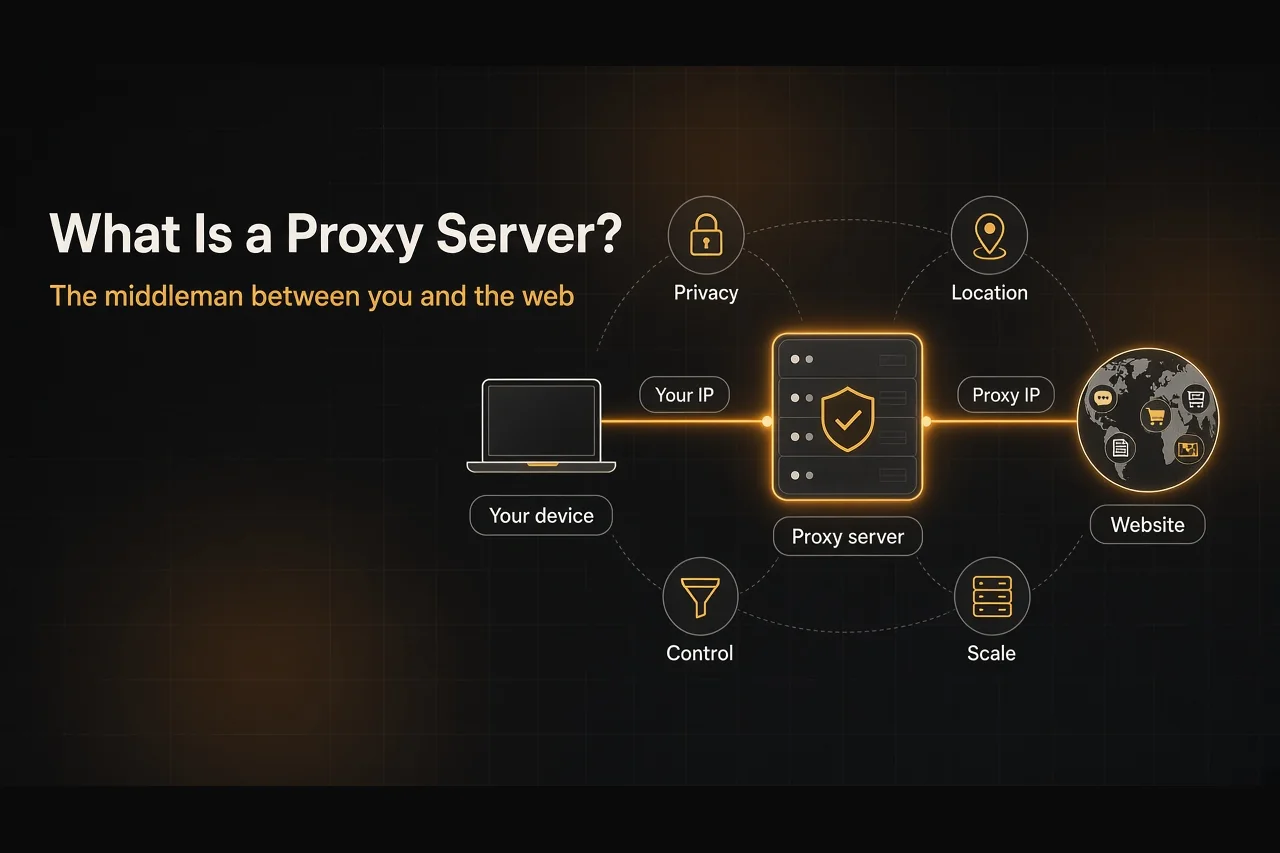
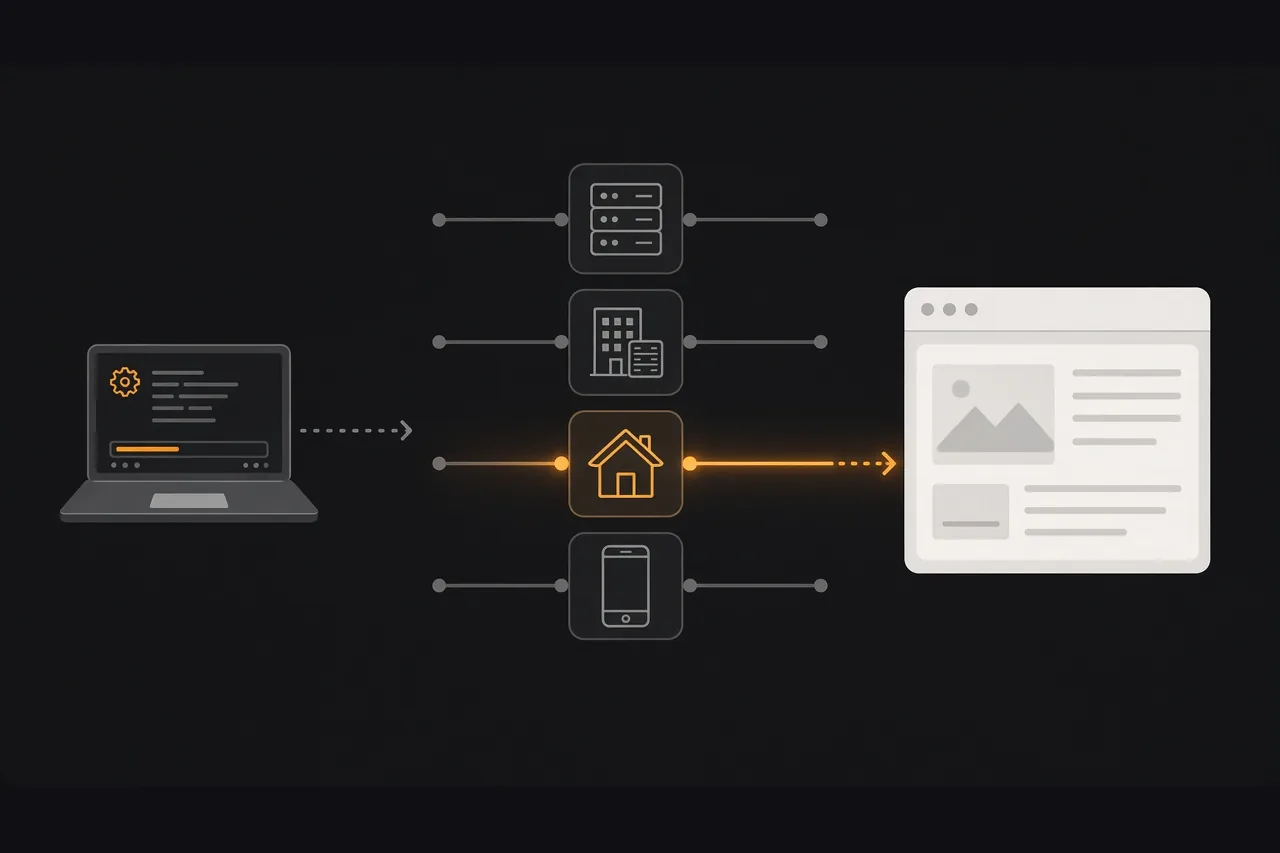
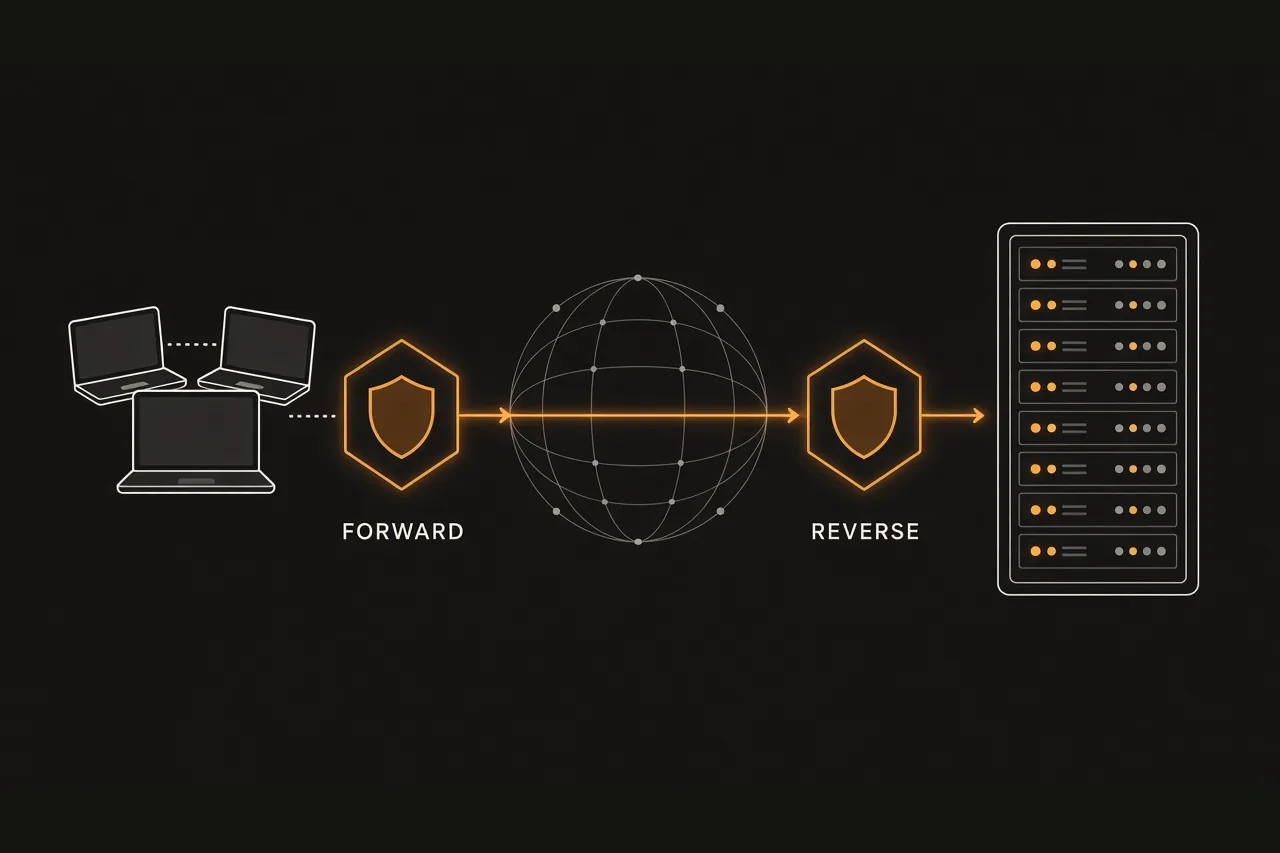
You bought a proxy, the dashboard gave you a host, a port and a password, and now you're staring at your browser wondering where any of it goes. The answer depends on which app you want to route, because Chrome, Firefox and Windows don't share one proxy setting.
Chrome and Edge borrow the system setting on Windows and macOS. Firefox keeps its own. An extension can override both, but only inside that one browser. Get this wrong and you'll set up a proxy in one place and test it in another.
There's also a catch most setup guides skip: Chrome can't log in to a SOCKS5 proxy at all. No setting fixes that.
Below is how to set up a proxy in each place, how logins and DNS work, and how to confirm it took. Every menu path and behaviour here comes from Microsoft, Apple, Mozilla and Chromium documentation. If you're still deciding between a proxy and a VPN, read what separates a proxy from a VPN first.
What do you need before you set up a proxy?
Four details from your provider's dashboard, and one decision.
| Detail | Example | Where it goes |
|---|---|---|
| Host | proxy.example.com or 203.0.113.10 | Address or server field |
| Port | 8000, 8080 or 1080 | Port field |
| Protocol | HTTP, HTTPS or SOCKS5 | Decides which field you fill |
| Login | Username and password, or an allowlisted IP | Browser prompt, extension or allowlist |
The decision is the protocol. HTTP proxies work everywhere and support logins in every browser. SOCKS5 carries any TCP traffic but has patchy login support in browsers. My guide to SOCKS5 vs HTTP proxies covers the trade-off in depth.
If your provider offers both on the same account, start with HTTP. It's the one that works with a username and password in Chrome, Firefox and Windows alike.
Where do proxy settings actually live?
There are three layers, and the one that wins depends on the app.
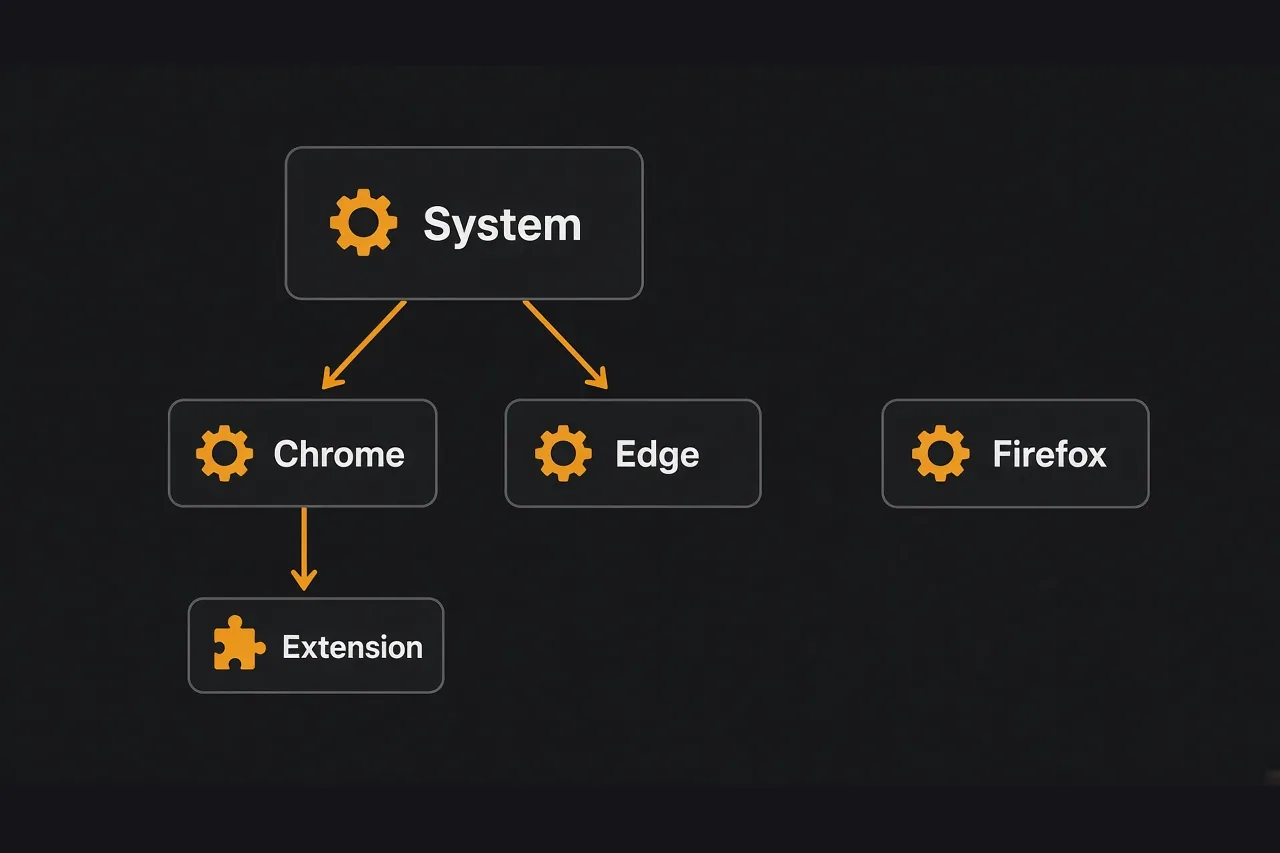
- System settings: Windows and macOS each have one proxy setting. Chrome and Edge follow it, and so do many other apps that use the operating system's networking.
- Firefox: it ships with its own Connection Settings, which can either copy the system setting or use a manual proxy of its own.
- Extensions: a proxy extension sets the proxy for its browser only, and can switch it per site.
The Chromium project lists where Chrome can pick up a proxy: managed policy, command-line flags, extensions and the system settings. So if Chrome ignores your change, check whether an extension or a company policy is already in control. Typing chrome://policy in the address bar shows any policy that's set.
How do you set up a proxy in Windows 11?
Microsoft's own steps are short:
- Open Settings, then Network & internet, then Proxy.
- Under Manual proxy setup, next to Use a proxy server, select Set up.
- Turn on Use a proxy server.
- Enter the proxy's IP address or host name in Proxy IP address, and the port in Port.
- Add any sites that should skip the proxy to the exception list, separated by semicolons. Microsoft's example is *.contoso.com; *.adatum.com.
- Leave Don't use the proxy server for local (intranet) addresses ticked unless your organisation says otherwise, then select Save.
That's the setting Chrome and Edge read on Windows.
Two details catch people out. First, Microsoft notes that a VPN connection with its own proxy has to be set up separately, under Network & internet, then VPN, then Advanced options. Second, the Settings page has no username or password field. When a site loads through a proxy that needs a login, the browser asks for it.
The same page also offers Automatically detect settings and Use setup script. Those are for company networks that publish a proxy auto-config (PAC) file. With a commercial proxy, you'll almost always use the manual option.
Windows' proxy setting is not a whole-computer switch. Plenty of apps ignore it, including most command-line tools, which read environment variables instead. Test the exact app you care about.
How do you set up a proxy in Chrome?
Chrome doesn't have a proxy form of its own on Windows or macOS. Its settings page sends you to the operating system: open Settings, then System, then Open your computer's proxy settings. From there, follow the Windows steps above or the macOS steps below.
That's fine for a quick setup, but it means every Chrome profile, and Edge too, uses the same proxy. For anything more flexible, you have two options.
Option 1: a launch flag
Chromium's documentation describes a command-line flag that sets a proxy for one Chrome session without touching system settings:
A few rules from the same docs are worth knowing:
- Write the proxy as scheme://host:port. With no scheme, Chrome assumes HTTP.
- Add ,direct:// after the proxy to fall back to a direct connection when the proxy is down. Without it, pages fail with ERR_PROXY_CONNECTION_FAILED, which is often what you want if leaking your real IP is the bigger risk.
- --proxy-bypass-list="*.example.com;localhost" sends matching sites around the proxy.
- Chrome never proxies localhost or 127.0.0.1 unless you add a special bypass rule that removes that default.
I add --user-data-dir so the flag lands on a fresh profile. Chrome flags generally only apply when Chrome isn't already running with that profile, and a separate profile keeps your cookies apart too.
Option 2: a proxy extension
Extensions are the easiest way to switch proxies often, or to send only some sites through one. FoxyProxy is a long-running open-source example, and its store listing describes switching by URL pattern, by tab or with one click. Its help page is also honest about the limit that matters most: username and password work for HTTP and HTTPS proxies in Chrome, but SOCKS5 logins work only in Firefox.
Install proxy extensions only from the official Chrome Web Store or Firefox Add-ons listing. An extension that controls your proxy can see where every request goes.
Why your SOCKS5 login fails in Chrome
The Chromium proxy documentation says it plainly: "No authentication methods are supported for SOCKSv5 in Chrome." It also says Chrome won't use credentials embedded in manual proxy settings. Instead, it goes through its normal login flow.
So a socks5://user:pass@host string in a flag does nothing useful. If your provider only gives you a password-protected SOCKS5 endpoint, you have three ways out:
- Use the provider's HTTP endpoint with the same login.
- Switch the plan to IP allowlisting and use SOCKS5 without a password.
- Do the SOCKS5 work in Firefox, where extensions can pass SOCKS5 credentials.
How do you set up a proxy in Firefox?
Firefox has its own dialog, so changes here don't affect Chrome or the rest of the system.
Open Settings and type proxy into Find in Settings. Mozilla has been moving this section between Firefox versions, so searching is faster than hunting. Then open the Connection Settings dialog. The button is labelled Configure proxy in newer versions and Settings… under Network Settings in older ones.
Choose Manual proxy configuration, then fill in the fields for your proxy type:
| Proxy type | Fields to fill | Tick |
|---|---|---|
| HTTP | HTTP Proxy and Port | Also use this proxy for HTTPS |
| SOCKS5 | SOCKS Host and Port, then select SOCKS v5 | Proxy DNS when using SOCKS v5 |
Type the host on its own, with no http:// in front. Use the No proxy for box for sites that should skip the proxy. Firefox never proxies localhost, 127.0.0.1 or ::1 anyway.
The other options in the dialog are No proxy, Auto-detect proxy settings for this network, Use system proxy settings and an automatic proxy configuration URL. Use system proxy settings makes Firefox follow Windows or macOS like Chrome does.
There are no username or password boxes in this dialog. For an HTTP proxy that needs a login, Firefox asks for it the first time you load a page. For a password-protected SOCKS5 proxy, you'll need an extension such as FoxyProxy, which can pass SOCKS5 credentials in Firefox.
Should the proxy or your computer look up DNS?
With a SOCKS5 proxy, let the proxy do it. Otherwise your own network looks up every site name you visit, even though the page itself loads through the proxy.
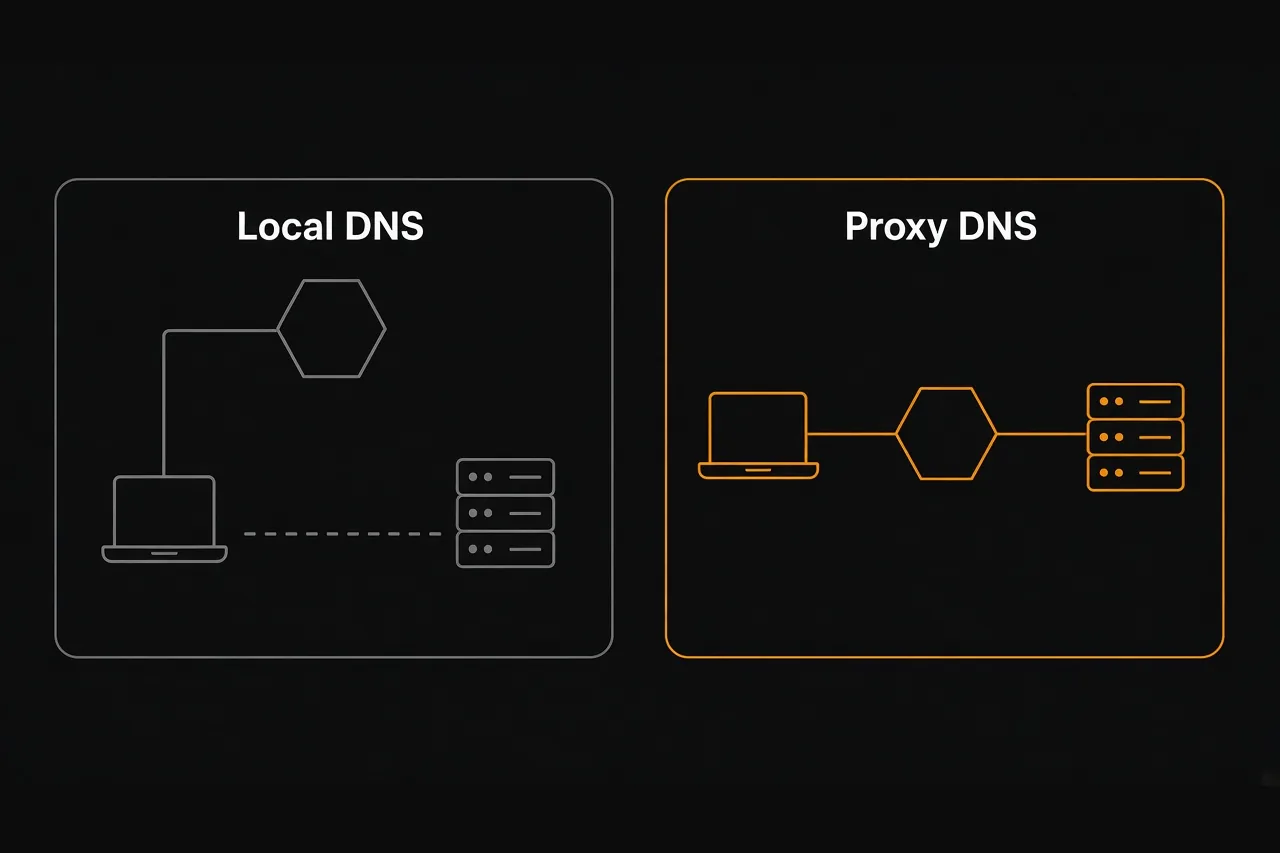
Each tool handles this differently:
- Firefox: tick Proxy DNS when using SOCKS v5. It corresponds to the network.proxy.socks_remote_dns preference in about:config.
- Chrome: Chromium's docs say Chrome always resolves names on the proxy side with SOCKS5, so there's nothing to set.
- HTTP proxies: the browser hands the site name to the proxy, so lookups already happen on the proxy's side.
- curl and scripts: use socks5h:// rather than socks5://. The h makes the proxy resolve names.
DNS-over-HTTPS in the browser adds another path, which my proxy testing guide shows you how to check.
How do you set up a proxy on a Mac?
Apple's path is Apple menu, then System Settings, then Network. Pick your network service, select Details, then Proxies. You may need to scroll.
Turn on Web proxy (HTTP), Secure web proxy (HTTPS) or SOCKS proxy, and enter the server and port. Unlike Windows, macOS has a Proxy server requires password switch, with fields for your username and password. Hosts to skip go in Bypass proxy settings for these hosts & domains, separated by commas.
Chrome and Edge on the Mac follow this setting. Firefox follows it only if you chose Use system proxy settings.
How do proxy logins work in practice?
When a proxy needs a login and you haven't given one, it answers with HTTP status 407, Proxy Authentication Required. The browser then shows a sign-in box, and once you enter the details, the request goes through.
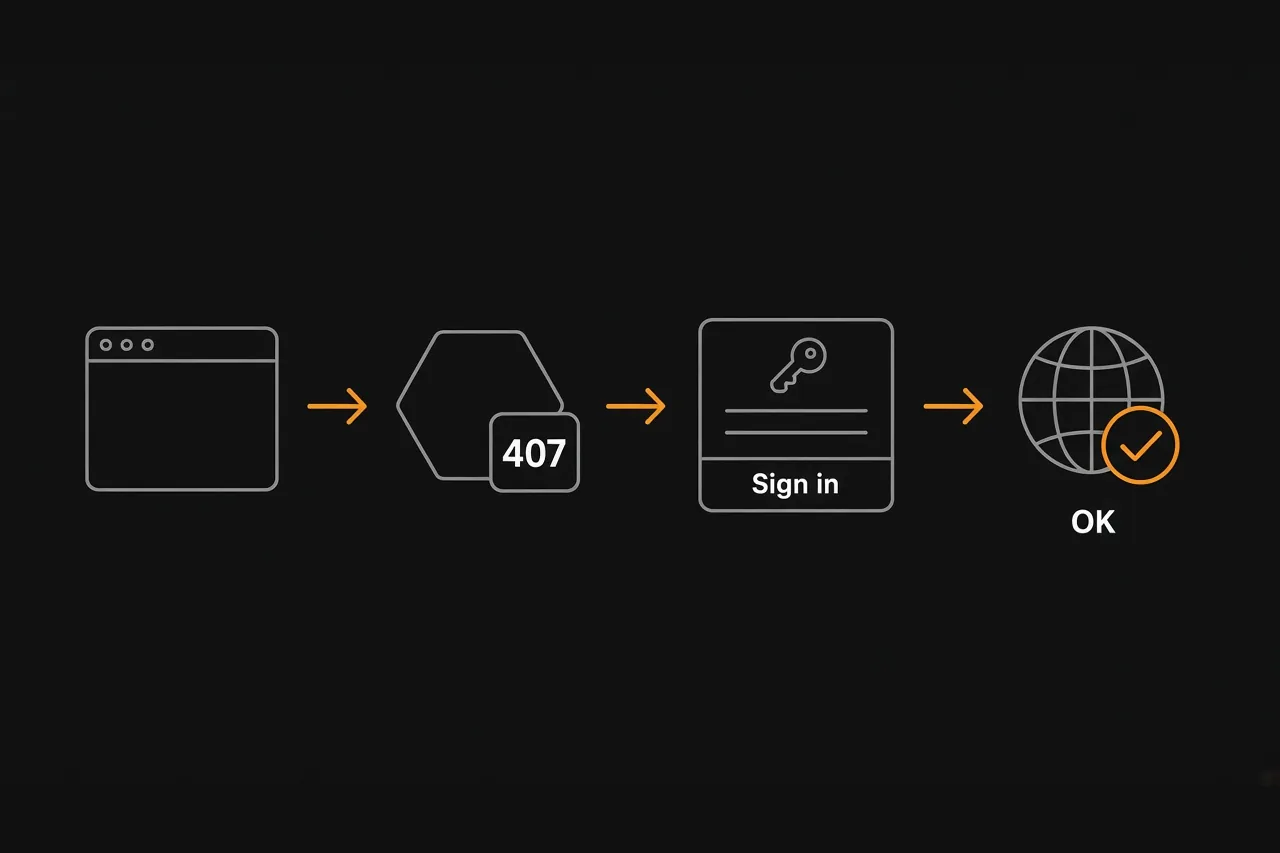
The alternative is IP allowlisting. You add your own public IP address in the provider's dashboard and the proxy lets you in without a password. It suits fixed-IP machines like a server. It breaks the moment your home IP changes, so if the proxy suddenly starts returning 407, check that first.
A few practical habits:
- Avoid special characters in proxy passwords you'll type into URLs. If you must use them, URL-encode them, for example %40 for @.
- Don't paste working proxy credentials into online "proxy checker" sites. Anyone holding them can spend your bandwidth.
- On rotating plans, session settings often live inside the username string. My explainer on rotating vs sticky sessions shows what those parameters change.
What about the terminal and scripts?
Most command-line tools ignore Windows and macOS proxy settings and read environment variables instead:
For one-off requests, curl takes the proxy directly with -x, which overrides the environment:
Can you run your own proxy on a VPS?
Yes, and for personal use it's the simplest proxy there is. The Chromium docs point out that ssh -D creates a SOCKS5 proxy through an SSH connection to a remote server:
Point Firefox at SOCKS Host localhost, port 1080, SOCKS v5, with Proxy DNS ticked. Or launch Chrome with --proxy-server="socks5://localhost:1080". Because the tunnel is your own SSH login, the SOCKS5 password problem in Chrome doesn't apply.
The catch is that you get one datacenter IP in the VPS's location, which suits private browsing on public Wi-Fi or reaching your own servers, not tasks that need residential IPs. For the server, I recommend a Hostinger KVM VPS. If you're new to servers, start with what a VPS is and how it differs from shared hosting.
How do you check the proxy is working?
Open an IP lookup page such as ipinfo.io in the app you just configured, with the proxy on and then off. The address should change to the proxy's IP, in the location you paid for.
That's the minimum. A proxy can show the right IP and still leak your real one through DNS or WebRTC in the browser. The full set of checks, with copy-paste commands, is in my guide to testing whether a proxy is working. If you use the proxy in a browser for account work, WebRTC and timezone leaks deserve a check too.
Common proxy setup mistakes
- Configuring Windows, then testing in Firefox, which has its own setting.
- Putting a SOCKS5 port in an HTTP field, or the other way round. Match the field to the protocol your provider lists for that port.
- Expecting Chrome to log in to a password-protected SOCKS5 proxy. It can't.
- Leaving an old proxy extension enabled, which quietly overrides everything you just set.
- Forgetting the exception list and wondering why the office intranet or router page broke.
- Using socks5:// instead of socks5h:// in scripts, so DNS leaks.
Frequently asked questions
If you take one thing from this guide, make it this: set the proxy in the same app you'll use it in, then test it there. And if your current proxy fails the location or network checks, it's worth comparing providers before you build anything on it.